Everything
Blazing-fast, ad-free file search tool Everything
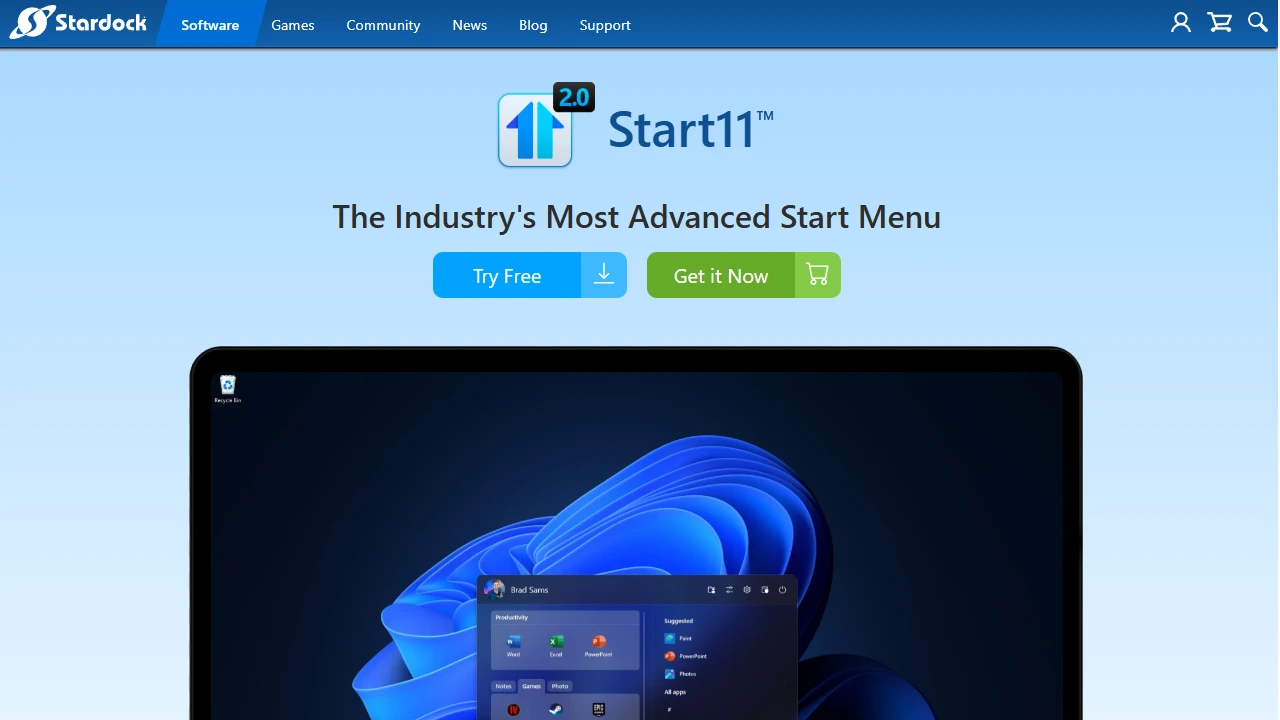
 Start11
 is a practical Windows Start Menu tool
Official URL: https://www.stardock.com/products/start11/
After switching to a new Windows system, the most frustrating part is the Start Menu. When you open it, there are a bunch of messy tiles, and it takes ages to find a frequently used program. I always feel unfamiliar with it, so I wanted a tool that could modify it.
This tool is not just a facade; it can actually modify the Start Menu to fit your own preferences, with the core being adapting to personal usage habits, so you don’t have to put up with the system’s default logic anymore. For me, the most practical feature isn’t the nice-looking styles, but the ability to organise frequently used programs.
The most comfortable parts after using it aren’t flashy, but they are all real conveniences:
I compared other similar tools before. Some free versions force ads — every time you open the menu, pop-ups recommending games or software appear, which is so annoying; some paid versions require an annual monthly fee, which is less cost-effective than a one-time payment for long-term use; others have poor compatibility with the system, and occasionally crash, causing delays.
This tool doesn’t have these issues — it’s a one-time payment, usable for life, no ads, and no random stuff secretly installed. The manufacturer that makes this tool, I’ve used another one of their tools before, which is reliable, so I feel safe using this. Also, its customisation level is higher than many similar tools — for example, the position of the power button, I can fix it to the side, so I don’t have to look for it every time I open the menu; this small detail is very practical.
There are also things to note after using it, which I learned from making mistakes: don’t touch cracked versions. I tried a cracked one before, and it crashed after a few days, plus it had malicious pop-ups. The official version costs money, but it’s stable and has no weird hidden actions. During the trial period, test all the features you need in advance, like folder grouping, transparency, styles, etc. Don’t wait until the trial ends to find out you didn’t use a feature. If you reinstall the system, remember to back up your settings, otherwise you’ll have to adjust them again, which is a waste of time.
As for whether it’s suitable for you, it’s quite clear: if you’re switching from an older system and frustrated with the new system’s Start Menu, you’ll definitely get used to it. If you usually have a bunch of software open on your computer and struggle to find programs, using it will save you a lot of time. Also, if you like tweaking small system details but don’t want to do complicated settings, it’s suitable. If you only use your computer to watch videos and chat on WeChat, and don’t have high requirements for the Start Menu, then it might not be necessary — after all, it’s a paid tool, so it’s not worth the money.