TickTick
A lightweight and practical to-do task management app — TickTick
 VPet Virtual Desktop Pet Simulator
An open-source, ad-free virtual desktop pet tool for computers
Official Website: https://github.com/LorisYounger/VPet
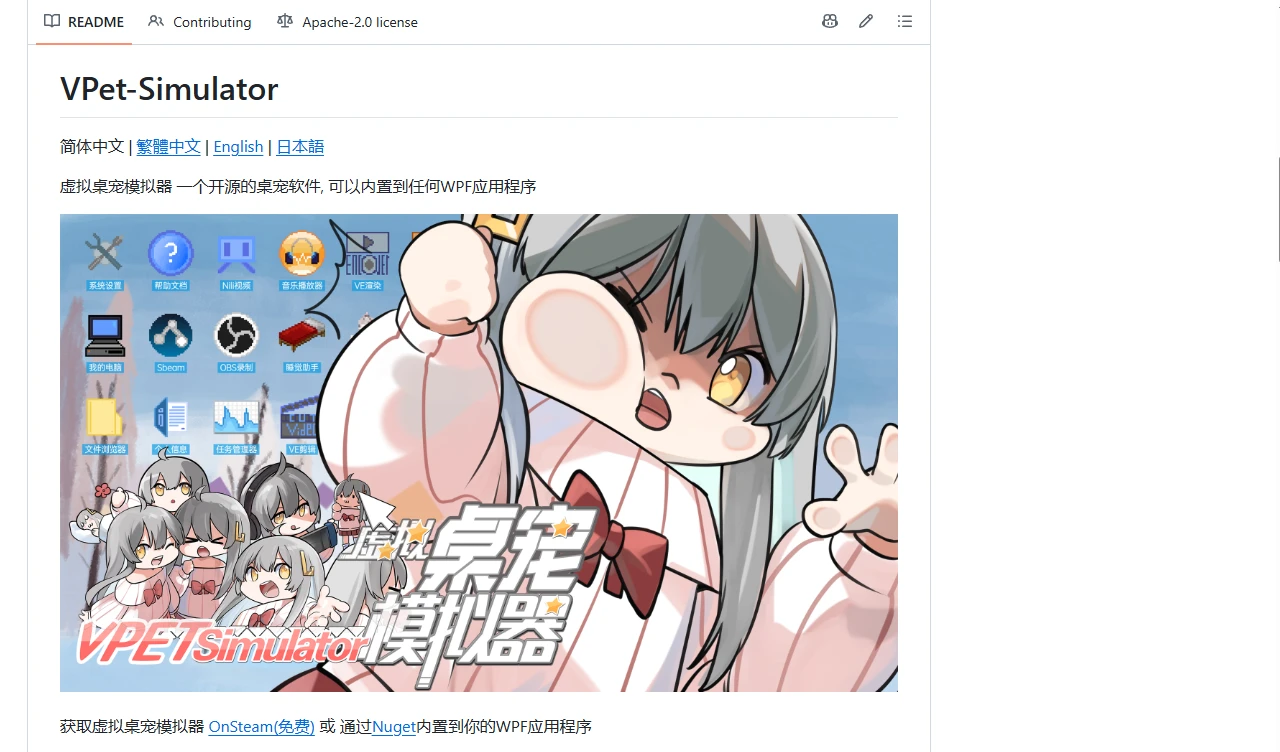
I used to think my computer desktop was too empty, unlike my friend’s which had a little pet moving around. After trying several desktop pets that either popped up ads or slowed down the computer, I finally found this highly compatible open-source tool.
I made quite a few mistakes when I first started using it. For example, I didn’t know that “working” was a feature to earn virtual coins for skins at first, thinking it was just a fancy gimmick. Later I found that this feature actually makes it do small actions automatically at the edge of the desktop, so you can accumulate coins without any operation. Also, the pet often got stuck when dragging it. I later learned that you shouldn’t drag it onto shortcut icons—you have to grab the pet itself and drag it to a blank area of the desktop, otherwise it will get stuck between icons for a long time and you’ll have to restart the program to fix it.
The core advantages of this desktop pet are open-source and no bloatware, so you don’t have to worry about downloading a modified version with ads. The community players share an insane amount of content—you can find everything from cute small animals to anime characters. Moreover, it takes up very little memory, and doesn’t affect the normal operation of the computer at all when running. When I used other desktop pets before, even the browser tabs would crash when they were open, but this has never happened.
In daily use, the interaction is very smooth—clicking the pet’s head makes it tilt and sway, and it won’t wobble when dragged. To feed it, just click the small cookie icon on its head, no need to go into complicated settings. The DIY editor is also very user-friendly: even if you can’t draw, you can import pixel art found online to make a custom skin. Just drag it directly into the program when importing, no need to mess with complex code. I modified an anime screenshot into a skin myself, and it worked directly after importing without any extra adjustments.
Compared with other similar tools on the market, this one has obvious advantages: other desktop pets either use nice skins to implement a membership system (you can only use extremely ugly basic skins without paying), or pop up ads every half an hour. Many also secretly collect background data, and even change the shortcut icons on my desktop into ad links. This one is completely free, all skins are open-source content made or uploaded by players, no ads, no pop-ups, and no privacy collection. Moreover, the supported skin plugins can be uninstalled at any time, taking up no extra space. You can just close it when not in use, and it won’t secretly take up resources in the background.
I’ve sorted out a few pitfalls to avoid when using it:
Most people who are suitable for this are those who want to add a bit of relaxation to their desktop—for example, office workers who use computers for a long time can relax by touching the pet; or people who want to move their mouse after coding for a long time, there’s a little thing on the desktop without looking elsewhere; and people who like tinkering with small tools can modify the skins to turn the pet into their favorite character. It’s not suitable for those who need to use high-load software all the time, such as video rendering or playing large games. After all, running it will take up a little memory, which may affect the running speed. Also, for those who expect the virtual pet to chat or have complex storylines—this one focuses on desktop companionship, with relatively pure functions. Don’t have too high expectations: it won’t talk to you, it will just sway around on the desktop.