
360 Desktop Assistant
360 Desktop Assistant, a lightweight tool to tidy up your cluttered desktop
 Wox
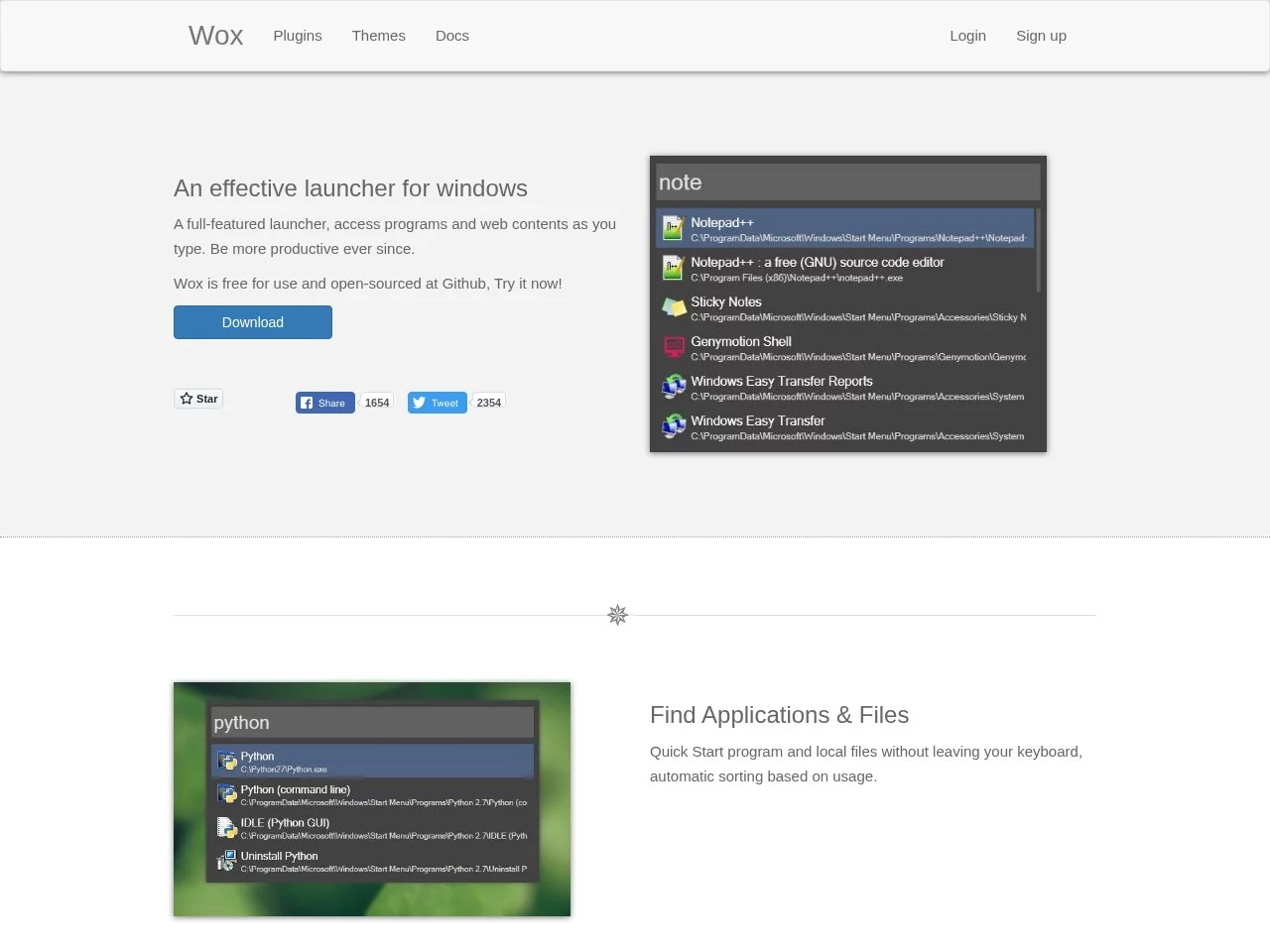
Wox is an open-source, lightweight quick launcher for Windows
Official website: http://www.wox.one/
The most frustrating part of using Windows day to day is finding things — digging through the Start menu for a program takes several steps, searching for a file means opening File Explorer and hunting for ages, and checking an exchange rate or translating a word on a whim means switching to the browser. All that window switching is a real drag, until I found this tool, which solved most of these headaches for me.
When I first started using it, I fell into a big misconception: I thought it was just a small tool for quickly launching programs, so I used it as a shortcut to replace the Start menu, only for opening WeChat, my browser and other everyday apps, and never touched the plugins or other features — wasting its most core capability. Only later did I learn that it isn’t a stripped-down Start menu, but a quick-action platform with a plugin ecosystem.
Its core strengths are actually **lightweight + open source**. After all these years of use, I’ve never found it taking up much memory, and it runs silently in the background. Being open source means no bundled software and no intrusive commercial pop-up ads — for me this matters more than having loads of features. The most practical part is its integration with Everything — I’ve used Everything for a long time, and searching local files with it is more than twice as fast as Windows’ built-in search. Wox calls Everything’s index directly: type a filename keyword in Wox and results appear almost instantly, without needing to open a separate Everything window, saving quite a few steps.
A few of its more specific features really hit the pain points of daily use:
I’ve compared it with similar tools, and its advantages stand out: I used Listary before — the free version is limited, with practical features like batch renaming and advanced filtering behind a paywall, while Wox is completely free and open source, so you can even modify it yourself. Compared with the built-in Win+R: Win+R can only run commands, and finding a program means typing the full path, whereas Wox’s visual icon results let you pick at a glance. Compared with Windows’ built-in search: it doesn’t mix in irrelevant results — it only shows what I actually need, like programs and files, with far less noise.
After using it this long, the pitfalls I’ve hit are worth mentioning too:
Finally, who it suits: office workers who regularly need to work efficiently on Windows, especially those who often need to find files, launch programs or look up small bits of information on the fly; people who prefer open-source software and hate ads and paywalls; and designers, copywriters and finance staff who need small features like colour picking, translation and currency conversion — it genuinely saves a fair bit of time. When I’m writing copy and looking for material, or picking colours for design work, opening this tool is far less hassle than fiddling with other software — no more digging through piles of folders, no more switching back and forth between multiple small utilities; the whole workflow is connected, and it’s wonderfully handy.