
Listary
Listary is a tool to boost Windows productivity
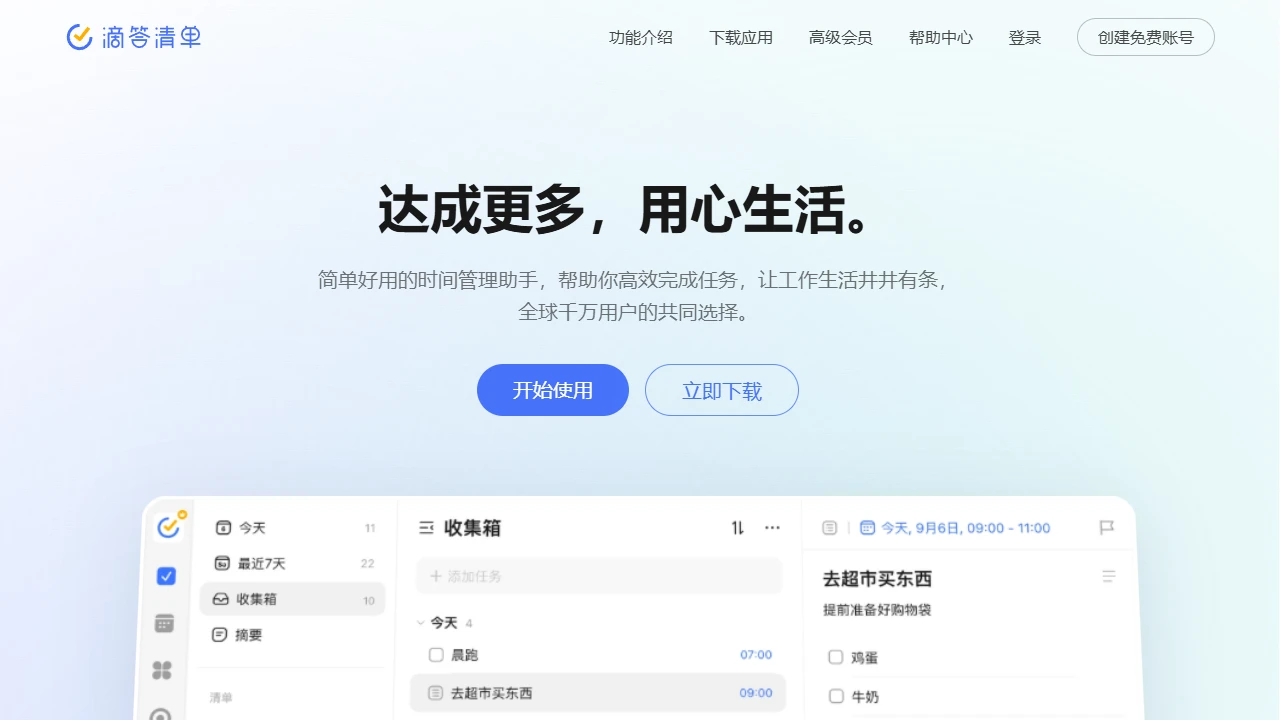
 TickTick
A lightweight and practical to-do task management app — TickTick
Official website: https://dida365.com/
Day to day I have several things to juggle: keeping an eye on project milestones, remembering to pay the household utilities and take the kids to their extracurricular classes, plus finding time now and then for a workout. Piling all that up in my head made things easy to forget. I tried handwritten to-do lists, but digging through them took ages, and other to-do apps were either too complicated to learn or so full of ads that they broke my train of thought. Then I came across this app, and it took a while of using it before I got the hang of it.
When I first started, I hit quite a few pitfalls: at the beginning I created tasks with no categories, piling work, life and study tasks together, so finding one later took forever; I also wanted to try every feature the moment I got started, and ended up not knowing how to use any of it properly; I once created tasks only on my phone without syncing them to the computer, couldn’t see them when working on the PC at the office, and missed several work tasks; and I subscribed to the premium membership straight away, only to find many premium features were of no use to me at all — a waste of money.
Over time I found the most practical features were **multi-device sync** and **four-quadrant classification**, plus the sharing feature. Multi-device sync genuinely requires no manual fiddling: phone, computer, web, tablet — log in with the same account, and a task added anywhere appears instantly, with no sync problems. The four-quadrant classification isn’t one of those flashy interfaces; it quickly sorts tasks into important & urgent, important but not urgent, urgent but not important, and neither important nor urgent, so you don’t have to agonise over priorities — one tap and it’s done.
The finer features also fit everyday needs: the Pomodoro focus timer isn’t a standalone timer — it’s tied to tasks. Pick a task such as “write the quarterly summary”, tap Pomodoro focus, set the duration, and when time is up it automatically logs the focus time for that task, with no manual record-keeping — very handy for tracking work efficiency. With habit check-ins, such as drinking water or going for a run every day, your streak is shown once you check in, so you won’t forget to keep it up. The desktop widget on Windows can sit right on your desktop, showing the day’s to-dos without opening the app — a quick glance is all you need when you’re busy. And there’s a calendar view that puts tasks and events on the same calendar, so you can see which day has a meeting and which task is due that day — no clashes, no double-booked slots.
I’ve tried other to-do apps: some were so complicated they took days to learn — not this one; you can create tasks as soon as you open it. Some charge extra for task sharing — with this one you can share even on the basic plan, say sharing a shopping list with your family or project milestones with colleagues; there’s no need to send separate messages — just edit the task and the other person sees it in real time. Some Pomodoro timers are standalone and unlinked from tasks, whereas here, once bound, you can see how much time each task took. This app also has very few ads — no random spammy recommendations popping up — so it feels clean to use.
A few practical tips to help you avoid the pitfalls: don’t create overly big tasks — break them into small ones. For example, don’t create “shopping”; create “buy milk” and “buy eggs” instead. That way ticking them off feels rewarding and nothing slips your mind. Make sure auto sync is turned on across all devices — don’t sync manually, or things easily get missed. There’s no need to subscribe to premium straight away; get familiar with the basic features first, and only consider upgrading if you genuinely need advanced reminders or the calendar view. Don’t mix work and personal tasks — create two separate lists, so everything is clearly sorted and easy to find.
It suits a fairly clear set of people: office workers with a pile of work tasks to keep an eye on; family users managing household chores and the children’s schedules; freelancers planning their diary and project milestones; and students organising their studies and homework. It’s less suitable for those with extremely demanding requirements — people who need complex data analysis or deep task classification. This app leans towards lightweight and practical rather than an all-in-one tool; it’s more than enough for everyday to-dos and schedule management, without feeling like a burden.