
360 Desktop Assistant
360 Desktop Assistant, a lightweight tool to tidy up your cluttered desktop
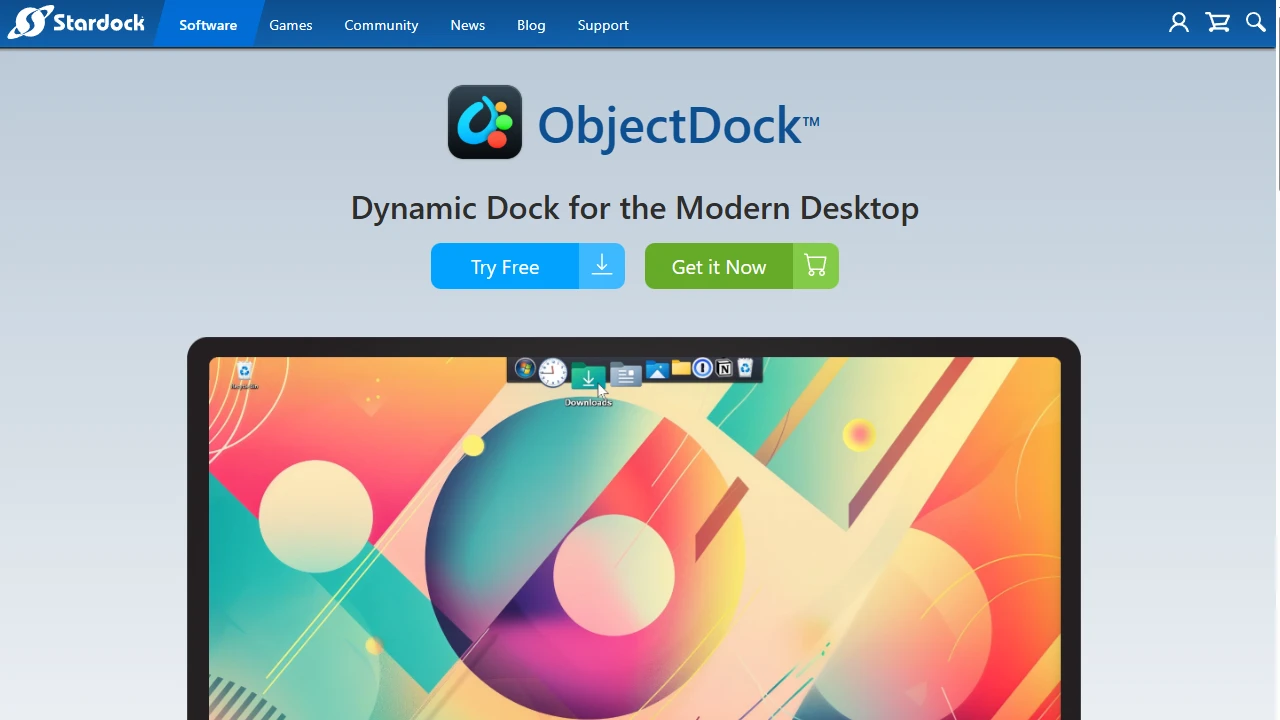
 ObjectDock
, a practical program for organising your Windows desktop
Official Website: https://www.stardock.com/products/objectdock/
My Windows desktop used to be piled up in a total mess, with icons crammed all over it, and finding a program took ages. One day I saw that kind of animated dock bar on someone else’s computer — the icons enlarged as the cursor approached — and it looked really clean, so I started looking for similar tools and gradually came across this one.
I fell into a big trap when I first started: I thought it was just an icon tray, so I piled all my frequently used programs onto it in one go. As a result, it was extremely cramped on hover, and the enlarged icons blocked each other, which completely failed to achieve the effect I wanted. Later I found out that this software isn’t just for piling up a bunch of icons — there are quite a few details that beginners easily overlook.
Its most practical feature isn’t the flashy animations, but that it can genuinely help me tidy up my desktop. I put my frequently used office software and media tools into different docks by category, leaving only the Recycle Bin on the desktop, and it looks much cleaner. No more clicking through the Start menu to find programs — the icons enlarge as soon as the mouse moves over them, clicking is more accurate, and I no longer mis-click small icons like before.
As for how it feels in actual use: for the hover-to-enlarge effect, I set the default speed to medium — not too abrupt, nor too slow to be frustrating. Replacing icons is convenient too: nice icon packs I downloaded myself can be dragged straight in and used without converting any formats, which is far less hassle than other software I’d tried before. As for the multi-dock layout, I later created three docks: one for daily office software, one for frequently used folders (such as Downloads and Documents), and one for small utilities (screenshot and screen recording tools). Switching between them doesn’t lag at all, and it’s far more comfortable than cramming everything into a single dock.
I’d tried other similar tools before: either the free version popped up ads everywhere, or the memory usage after enabling it was so high that even opening a web page lagged. Although this one is paid, I didn’t encounter any ads during the trial, and its background processes take up little memory. I usually run a dozen programs at once, and it never holds anything back. Besides, it isn’t one of those bloated programs that pile on loads of unnecessary stuff when installed — you can keep only the parts you need.
Let me mention a few pitfalls beginners tend to fall into — don’t mind me being long-winded, these are all personally tested:
This software suits people like me with messy desktops, those who frequently switch between several programs, and those who like a neat and tidy desktop — anyone who wants to add a bit of that smooth feel to Windows without tinkering too much with the system. It’s not suitable for those who just want to casually install a tray and don’t want to tweak settings, because it takes a bit of time to adjust the layout before it can be most useful. If you’re willing to put in a little effort to set things up, this one will definitely make your desktop feel a lot cleaner.
Oh, and one more thing: its icons support hiding after custom grouping. For example, for some rarely used utilities, I put them in a collapsed dock in the corner — unobtrusive normally, and just expand it when needed. This little detail is quite thoughtful. Anyway, after using it, it’s much more reliable than those previous tools that were either flashy or a total mess — no unnecessary tricks, just solid and usable.