XiaoZhi Desktop
XiaoZhi Desktop is a lightweight and practical desktop management tool
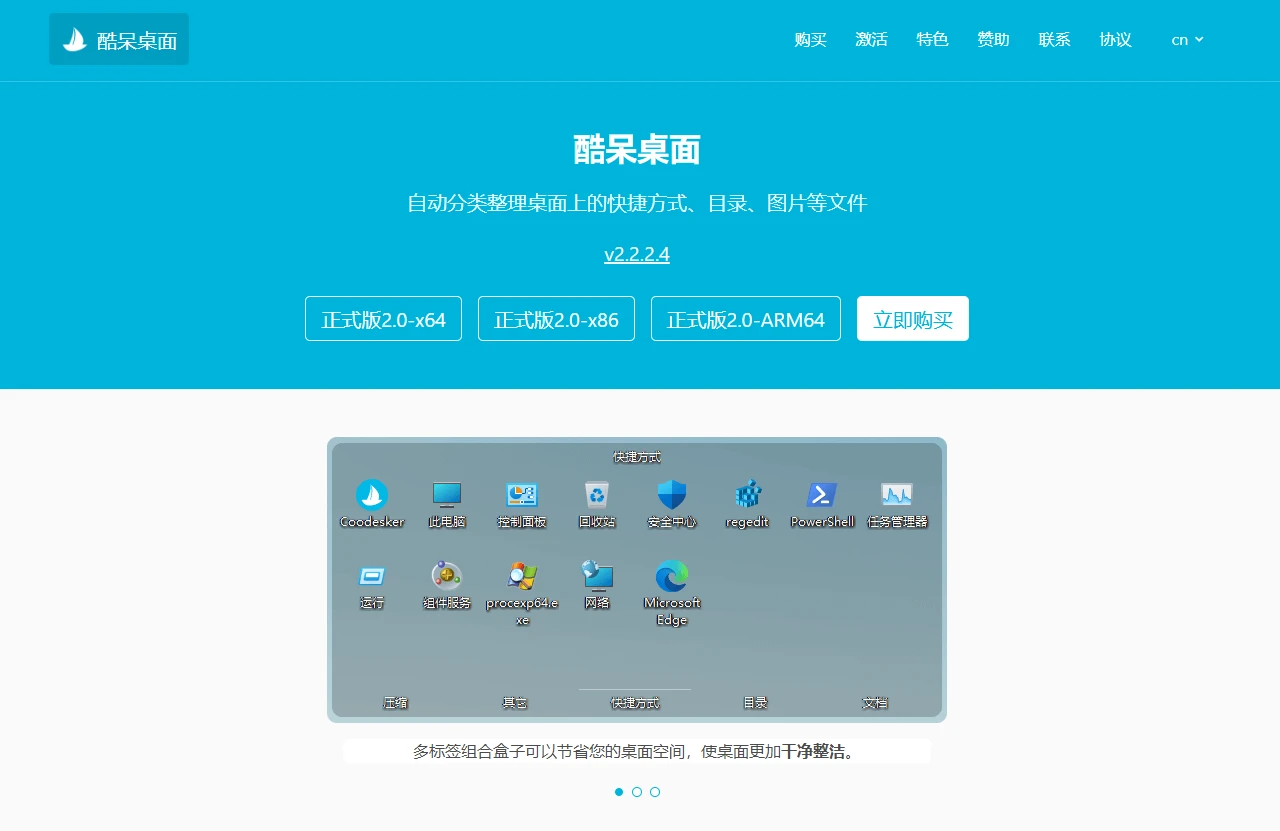
 Coodesker Desktop
Lightweight, ad-free, portable desktop organisation tool
Official website: https://www.coodesker.com/
I used to think that the computer desktop was the place where life’s mess was most visible — screenshots piled up like gibberish, downloaded installers, half-edited plans, and unnamed contracts crammed the screen with icons, even the Recycle Bin was buried under a pile of files. Every time I looked for something, I had to rummage for five minutes, and sometimes I couldn’t even find a picture I had just saved. I tried several organisation tools, but either they took up way too much memory after installation, or pop-up ads filled the entire taskbar, or they were paid, and I had to spend ages finding a cracked version.
People new to this kind of lightweight organisation tool are likely to fall into these traps: First, they think it must be installed, but when I first opened it, I found it’s a green, portable tool — just copy it to a USB drive and plug it into another computer to use, no need to mess with the Registry; Second, they think automatic categorisation will mix files randomly, but it can sort by file extension or rules you set yourself, so it won’t put a contract and a resume in the same box; Third, they think the free version has few features, but it has all the basic functions like partitioning and multi-page switching, which is more than enough for ordinary users.
What I value most is that it’s really lightweight — the memory usage in Task Manager is almost negligible, even when running PS, several browser tabs, and chat software at the same time, the fan won’t spin wildly. Also, there are no ads; I’ve used it for a long time and not a single promotional window has popped up. There’s no need to bind any account either; just close it when you don’t want to use it, and the background process disappears immediately without leaving any residue.
In daily use, I create several fixed boxes on the desktop — one for screenshots, one for office documents, one for temporary installers, and an “Archive” box for old files that are not frequently used. Multi-page switching is really convenient: during the day, the work desktop holds the files to process that day; at night, switch to the study page, leaving only course materials. No need to manually delete work files or open a new desktop — just switch, which saves a lot of trouble. Automatic categorisation is also good; downloaded .png screenshots go to the image box automatically, .docx documents go to the document box, so I don’t have to drag them around manually every day. If the categorisation is wrong occasionally, just drag it in manually, no need to change complex settings.
Compared with the foreign tools I used before, it’s free. I tried that foreign tool before, the Personal Edition was paid, and PS lagged after opening it, but this one doesn’t affect it at all. Compared with other similar domestic tools, some require binding a mobile phone number, some have bundled software, some have flashy interfaces that take up memory, but this one is very practical, no extra functions, just for organisation.
There are a few details to note when using it: don’t add too many boxes randomly. I added seven or eight at first, but then I had to open each box to find things, which was more troublesome — 3-5 is just right. Don’t set automatic categorisation too finely, for example, don’t let it split images of different sizes into different boxes, that would make it messy instead. Also, make sure to download it from the official website, not third-party download sites. A friend of mine downloaded it from another site before, it had bundled software, and he spent ages deleting it. If you don’t need it temporarily, just close it, no need to uninstall it, because it’s portable — next time you use it, just click the file to open it.
This tool is suitable for people like office workers who save a lot of screenshots and documents every day, and are always delayed by a messy desktop; students who download a lot of courseware and materials, making their desktop full; and people who hate pop-ups and software taking up memory. If you like to add various effects to your desktop and want many personalised skins, it may not be suitable, because it focuses only on organisation, no flashy things, the interface is very simple, just like a workbench.