Qtab New Tab
A practical and lightweight Qtab New Tab tool
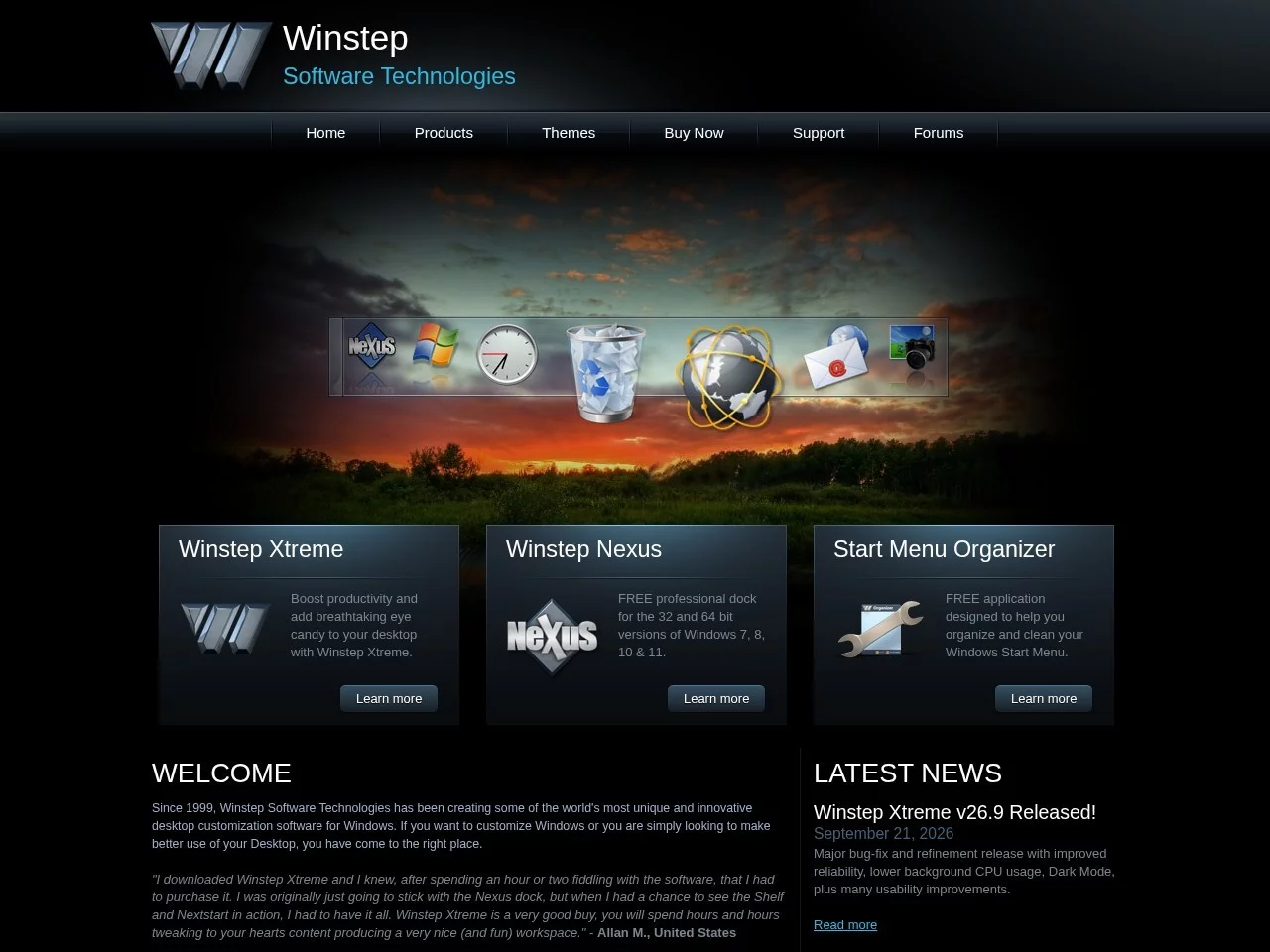
 Winstep Nexus
Practical desktop beautification Dock tool for Windows
Official website: https://www.winstep.net/
Many people who have used Windows for a long time find the built-in taskbar plain, and want a Dock like macOS’s to spruce things up. But either it takes up so many resources after installation that it lags terribly, or it has too few useless features, or it’s full of ads. I have tried many such tools, and finally settled on this one, but also stepped on many pitfalls that beginners are prone to.
What I appreciate most about this tool is that it truly understands the core needs of Windows users: you don’t need to modify system files, nor force modify startup items. It works right after installation, and you can adjust its position according to your habits — it can be docked to the left, right, or bottom of the desktop. It doesn’t block the native taskbar, and makes the desktop look more organised.
Let’s talk about the actual functional details: the blur effect. I have tried other Docks, but either the blur is too strong to see the icons clearly, or the edges are harsh like a layer of plastic. After adjusting this one, it’s close to the native glass texture of Windows, not abrupt, and looks comfortable. There are also multi-level sub-menus: I group commonly used office and video software into separate sub-menus, so I don’t have to pile up a row of icons on the Dock. Just click to expand, saving a lot of desktop space.
The CPU and memory widgets float on the Dock, so you can check their status without opening Task Manager. Although the values are not absolutely accurate, they are enough for daily reference. The weather plugin, as long as it’s connected to the internet, can show the approximate temperature and weather conditions, which is enough to glance at before going out. There are also many skin themes: change to a fresh or sci-fi style, and the whole desktop’s temperament changes. There are also custom colour options, so you can mix your own colour scheme and won’t have the same desktop as others.
Compared with similar tools, its advantages are particularly tangible: a previous similar tool I used doubled the memory usage after opening, even on a thin and light laptop it lagged for daily use. This one, even with all default functions enabled, has much lower memory usage, and doesn’t affect operations like browsing the web or opening documents at all. As for ads, other tools often pop up promotion windows that you can’t close, but I have used this one for so long and almost never received pop-up harassment. Also, custom icons: many tools only allow preset icons in the free version, but this one lets you change to any icons you like, even ones you made yourself, which is very friendly to people who like personalisation.
Let me mention a few pitfalls I stepped on, to help beginners avoid them: when setting the blur effect, don’t set the blur intensity over 30%, otherwise the desktop icons will blend with the background and you’ll have to search for them for a long time. Don’t set the Dock size too large — there’s no need to take up half the screen. Adjust it to a smaller size according to your habits, only put in less than 20 commonly used software; too many will be messy. Don’t install third-party skins randomly — some third-party skins come with bundled software. It’s safest to download skins from the official website. If you use dual monitors, don’t just install it on the main monitor — each monitor can set the Dock separately, this is a hidden function many people don’t know, and you can have a nice Dock on the secondary screen too.
Finally, who this is suitable for: if you like tinkering with desktop beautification, but don’t want to modify the system or tinker with complex settings, this tool is a good fit. If you often need to open software quickly in daily use, don’t want to browse the Start Menu or pile up a bunch of desktop icons, this multi-level menu and quick start will help you. Also, if you like real-time status from widgets, you don’t need to open multiple windows — you can check system resources and weather on the Dock, which is convenient. Of course, if you pursue extreme minimalism on the desktop, or need a professional-level task management tool, this may not meet your needs. Its core is aesthetics and convenience, not a professional task scheduling tool.