
Qtab New Tab
A practical and lightweight Qtab New Tab tool
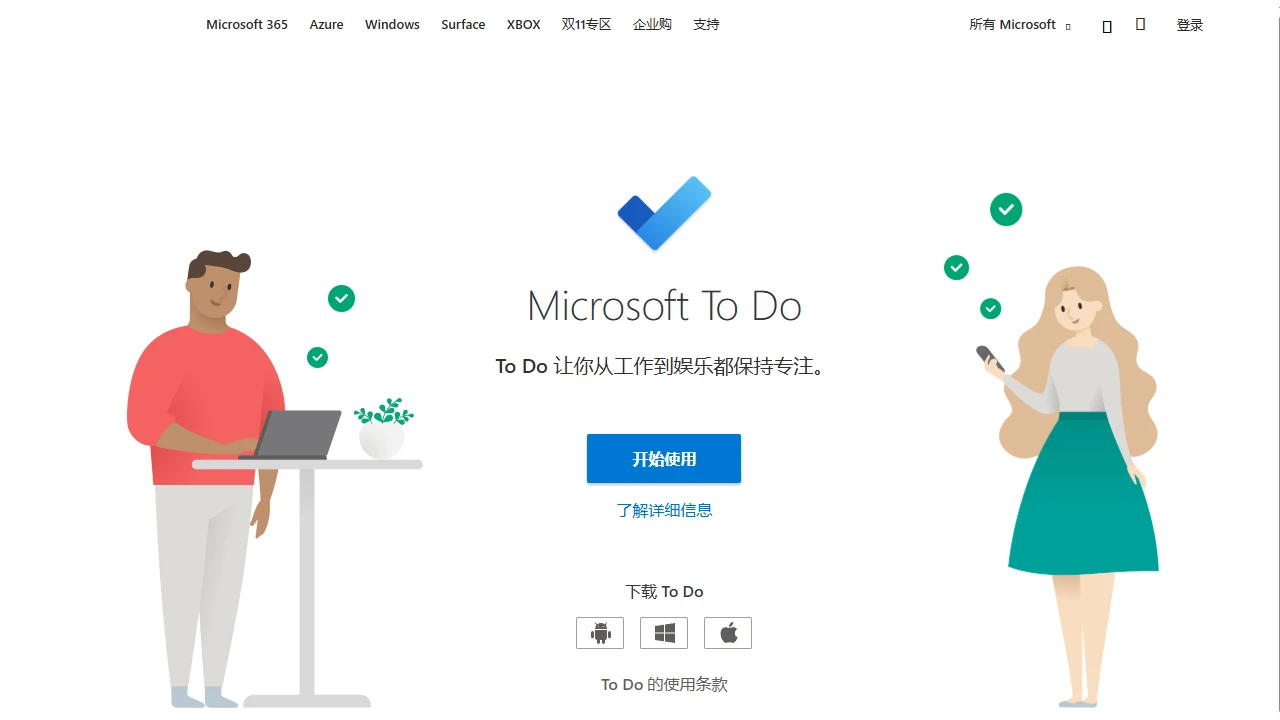
 Microsoft To Do
Microsoft’s official lightweight to-do tool, solving daily task pain points
Official website: https://to-do.office.com/
I used to get frustrated with to-do apps all the time — either what I noted on my phone wasn’t visible on my computer, or I deleted overly complex features after using them twice. It wasn’t until I found this Microsoft-made to-do tool that I solved my messy task problem.
I’ve tried several similar tools, and this one clearly stands out. The free version of TickTick I used before had too many restrictions, with a limited number of projects, and some advanced reminders required a paid subscription. Todoist’s free version is too basic, and its integration with Microsoft 365 is via a third-party plugin — each sync takes several minutes, sometimes not syncing at all, forcing you to manually refresh, and tasks often go missing, which is really annoying. This one is made by Microsoft, so data privacy is guaranteed — you don’t have to worry about your personal to-do data being used by third-party tools, which is extremely important for office workers.
Here are some tips I learned the hard way to make it work better: don’t mess with task priorities — the system defaults of “Important” and “Normal” are enough. Changing them randomly will push important tasks to the back and disrupt your rhythm. The web and mobile versions have slightly different operation logic: on the web, you find lists in the left sidebar; on mobile, you have to scroll down to see the list entry. It’s easy to get lost when you first use it, but you’ll get used to it after a few tries. Don’t add too trivial tasks, like “drink water” or “turn off the computer” — these will make your to-do list look messy and reduce your motivation to complete tasks. Only add tasks that take time or have clear goals.
This tool is suitable for: people who rely on the Microsoft 365 suite for daily office work, like those using Outlook for emails and Windows PCs for work; those who prefer simple operations and don’t want to spend time learning complex features; and those who care about privacy and don’t want their personal to-do data to leak. If you need to manage large projects, track hundreds of tasks, or are used to Kanban-style visual management, this one might not be right for you — you’ll need a dedicated project management tool. This one is more focused on lightweight personal daily to-do management, so you don’t have to spend too much time on features and can get started quickly.
One more thing: don’t try to add too many tasks when you first start. Begin with a few fixed categories, like work-related tasks, and slowly add life-related ones once you get familiar with the features. Otherwise, you’ll get overwhelmed — after all, the goal is to organise tasks, not add new burdens.