
Bongo Cat
Bongo Cat is a desktop cat pet that moves with your keyboard and mouse
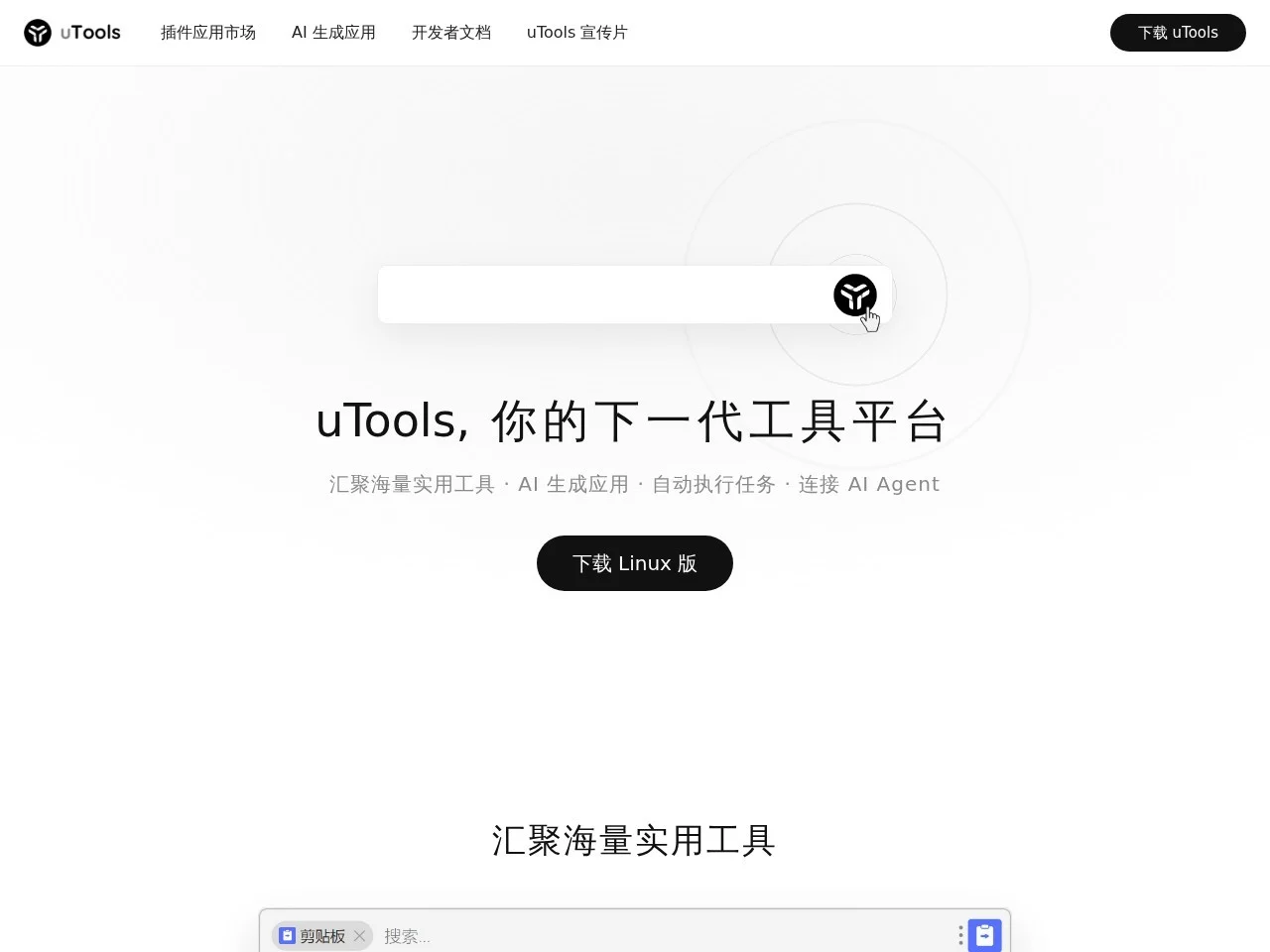
 uTools
 is a lightweight, practical tool for boosting computer productivity
Official website: https://u.tools/
I used to feel there was never enough time at my computer: revising plans meant digging through folders for half an hour, copying several snippets meant switching between windows back and forth, and translating in the browser meant jumping between pages — my fingers kept wandering around the keyboard and plenty of effort went to waste. I tried several quick-launch tools: some ate memory and slowed my computer down, others had pitifully few features. It was only when I came across this one that I felt I had finally got the hang of efficiency tools.
Newcomers will most likely run into a few pitfalls:
The most practical thing about this tool is that it is lightweight and hassle-free. After installation it barely takes up any memory in the background, and will not make your computer hot or sluggish. It also works with Chinese domestic operating systems, needs no messy dependencies, and is ready to use as soon as you open it — no spending ages on settings following tutorials. It is especially friendly to beginners.
The features I use every day are all powered by plugins:
Having compared other similar tools, what sets this one apart is that all the basic features are completely free, plugins can be chosen as needed, there is no forced installation of a pile of flashy extras, and there are no ads to disturb you — it feels very clean to use. Some tools pop up a load of recommendations the moment you open them, which you cannot close without paying for membership. This one does not do that at all; you find features by searching yourself, which is far more comfortable.
After using it for a while, I have also summarised a few practical tips:
Finally, a word on who it suits: office workers who often handle documents and organise materials in batches, students or copywriters who frequently need translation, and computer users who find Windows’ built-in features inadequate but do not want too much hassle. This tool is quick to pick up and genuinely helps save time. If you only use your computer for browsing and chatting, it may not be worth getting — its strength is boosting work efficiency, not entertainment.