
Pixabay
Pixabay is a high-quality resource platform for free commercial use
 QuickLook
Useful lightweight Windows file preview tool
Official website: https://github.com/QL-Win/QuickLook
When organising photos imported from cameras or asset packs from partners, you have to double-click hundreds of images one by one. Sometimes finding a specific screenshot takes ages, and it’s even more troublesome with archives — you have to wait for them to extract before knowing if they contain what you need. After testing this tool recently, I’ve solved most of these annoying issues.
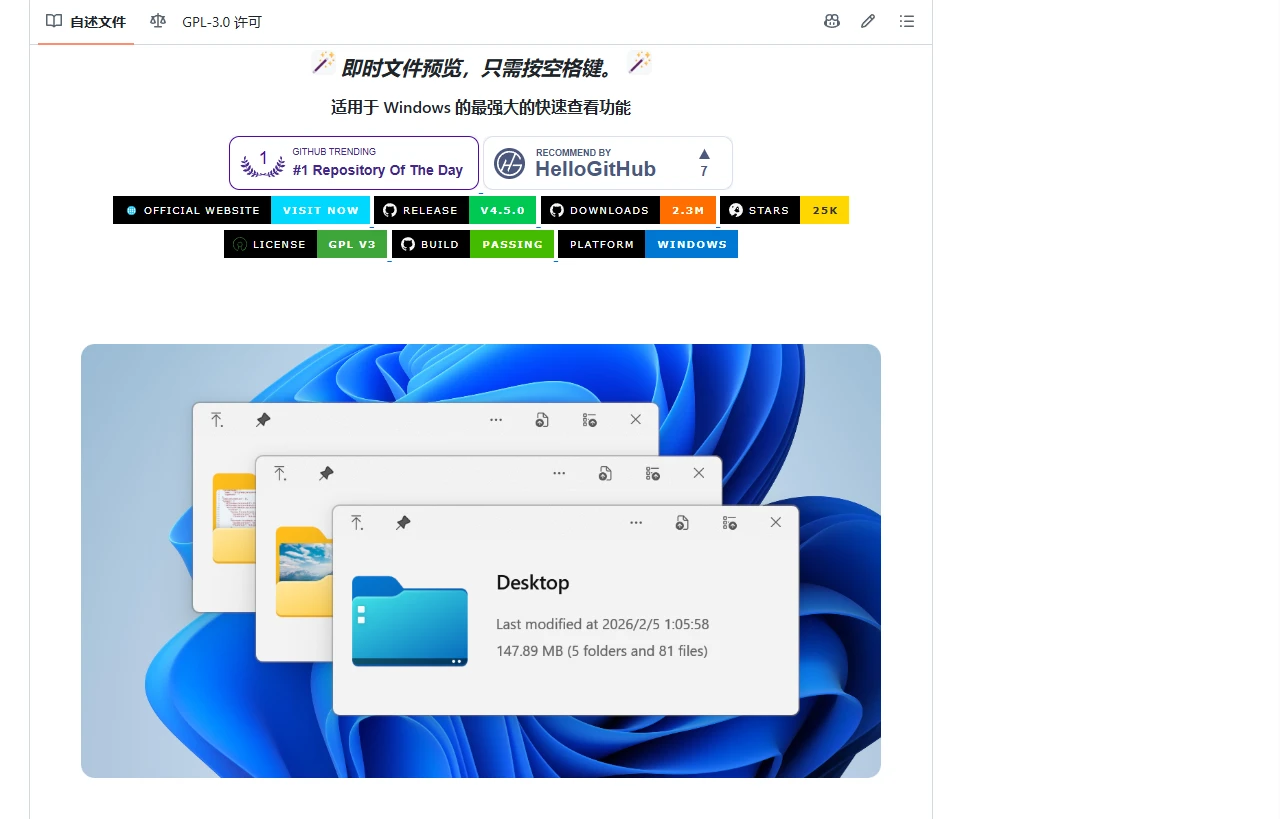
The best part is the experience of not opening a new window. Select a file and press the space bar, and a lightweight floating window pops up. You don’t need to switch programs, it doesn’t take up taskbar space, and it doesn’t interrupt your current file organisation at all. Especially for those switching from macOS to Windows, the operation logic is almost identical — even the shortcut keys are the same, so it’s totally stress-free to get started. The built-in Windows file preview window is too small, and you can’t adjust its size properly even after dragging it for ages. This floating window adapts to the original file, and you can drag it anywhere, so it won’t be blocked by the file list when viewing.
The default supported formats are enough for daily use — JPG, PNG, MP4, TXT, ZIP all work perfectly. If you encounter rare formats, such as some special document or image formats, you can install plugins. All plugins are open-source, so you don’t have to worry about malicious code. Once, a partner sent an archive with dozens of images. I selected it and pressed the space bar, and saw all the image thumbnails directly in the floating window — no need to extract, saving almost ten minutes. You only know how great that feels when you’ve used it. Short videos open instantly, no need to wait for loading, much faster than the built-in player.
I’ve tried other similar tools before. Some have endless pop-up ads, and sometimes a webpage pops up out of nowhere when using them — so annoying. Some require payment to unlock core features, otherwise there’s a watermark when previewing. Others need a bunch of dependencies, and setting up the environment alone takes ages. This QuickLook is open-source and free, no ads, no payment barriers. You can use it directly after installation, no need to change settings or install extra software. It’s very lightweight, and you barely notice it using resources when in use.
There are a few small details to note when using it — don’t find them troublesome, they can save you a lot of hassle. First, only download from the two official channels. Installers from third-party sites almost always have bundled software; I’ve seen people end up with several useless programs after installing before. Second, make sure to select the file in the file list before pressing the space bar. If you press it in a browser or Notepad, it won’t work at all — after all, it’s a tool for the file manager. Third, if you think the floating window is too small, just drag the edge to resize it, no need to look for settings. Fourth, don’t install too many plugins. While too many useless plugins won’t crash it, they will take up resources, defeating the purpose of keeping it lightweight.
I think this tool is perfect for several types of people. For example, those who often organise large numbers of files — like designers, copywriters, and social media creators, who deal with all kinds of assets every day. This tool can save them tons of time. For those switching from macOS to Windows, they don’t need to adapt to new operations, they can use it right away as they’re used to it. Also, for people who hate opening too many windows, don’t want to fill up the taskbar, or don’t want to install large viewing software — like not needing a professional image viewer or PDF reader, this lightweight tool is enough, fully meeting daily needs.