
Fliqlo Flip Clock
A minimalist flip clock tool designed for office settings
 Lively Wallpaper
Recommended free and open-source Lively live wallpaper tool
Official website: https://github.com/rocksdanister/lively
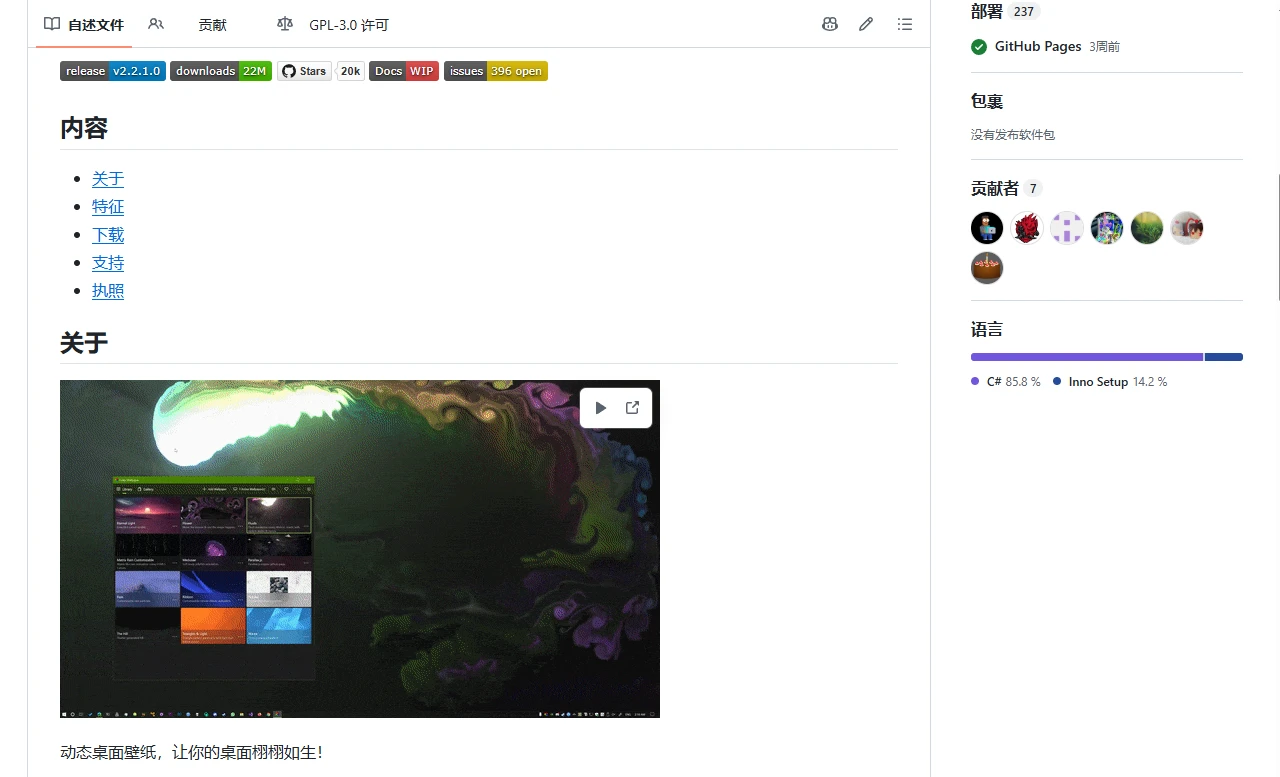
I’ve messed around with live wallpapers before, and the mistakes I made could circle my desktop three times. Either it’s under the guise of being free, but you actually have to pay for a membership to unlock “no lag”, or it comes with a bunch of random plugins after installation, adding several unremovable right-click menu items to the desktop. And that paid tool everyone in the community talks about is really expensive, and as soon as you open it, the computer’s background memory jumps up, so you have to close it to edit a short video. Then I came across Lively, and finally found something reliable.
New users will probably make two mistakes. First, they only focus on its built-in library, not knowing they can import their own videos — when I first used it, I searched the entire library and couldn’t find anything related to pets, then later realised you can just drag local videos in. Second, they think the free version has fewer features, but it actually supports dynamic web pages and GIFs, no worse than paid ones. Some people open the highest resolution wallpaper right after installation, and their computer lags like a slideshow — that’s what happened to me, I imported a 4K cat video and the mouse was drifting.
What hits me the most is Truly free and open-source, no bloatware, no tricks. Unlike some tools that claim to be free but hide ad pop-ups, and that paid tool which, while full-featured, costs a lot — this is perfect for students or people who don’t want to spend money on wallpaper tools. Also, its resource usage is really restrained: when I have it open, plus Jianying, a browser, and Photoshop, there’s still over half the memory left. Before, with that paid tool, I had to close Jianying to avoid lag.
The features I use most conveniently daily are: first, local video import — whether it’s recorded on a phone, taken with a camera, or clips I edited myself, you can drag them in as wallpapers and adjust the volume — I usually turn it off to avoid disturbing work. Second, dynamic web page wallpapers — for example, if I want to use a Bilibili anime OP as a wallpaper, I just enter the link, no need to screen record and convert to video, which saves trouble. It also lets you set wallpaper rotation, like changing every hour without manual adjustment — I use this feature a lot. You can also adjust the wallpaper’s frame rate and resolution; if your computer is average, lower the frame rate and resolution to avoid lag. This setting is a bit hidden, new users might not find it — I only found it after digging through settings. The built-in library isn’t as complete as paid ones, but it has no ads, everything is usable directly, no pop-ups to click.
I’ve tried other free tools before: some are open-source maintained but update slowly, some are commercial software with bloatware, some require forced account registration. Lively doesn’t — you can use it right after installation, even skip logging in. It’s community-maintained, updates frequently, and has no ads at all, no secret background downloads. Compared to that paid tool, its biggest advantage is being free and low resource usage. Before, with the paid one, it took up a lot of memory on startup; Lively takes up at most a few hundred MB, which is crucial for laptop users, so it won’t interfere with other tasks.
Here are a few mistakes I made for new users:
The target users are quite clear: students who don’t want to spend money on wallpaper tools; people with average computer specs who don’t want wallpapers to slow them down; those who like customising wallpapers and want to import their own pet or travel videos; and people who hate bloatware and pop-up ads. This really solves a lot of troubles, no need to mess with all that random stuff, no need to compromise for nice wallpapers, and no fear of the computer lagging.