iTop Easy Desktop
iTop Easy Desktop is a free and practical desktop organization tool
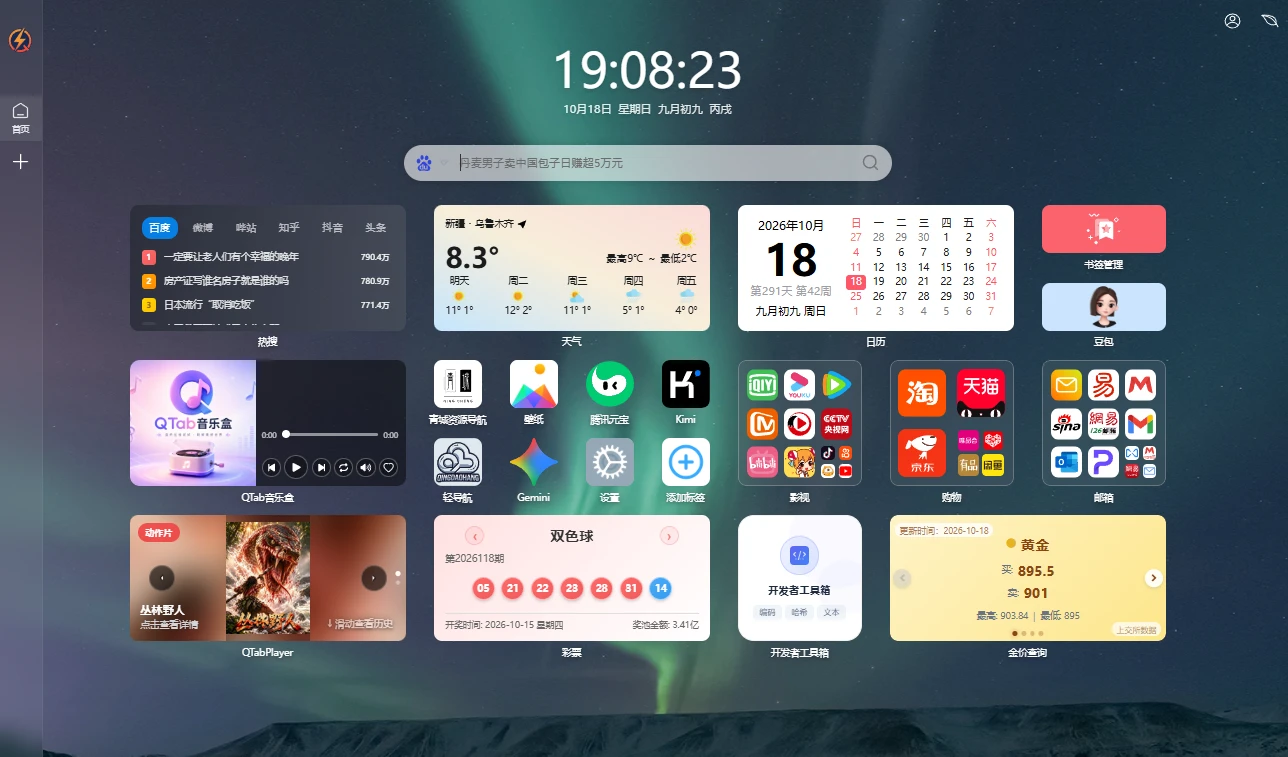
 Qtab New Tab
A practical and lightweight Qtab New Tab tool
Normally when you open a new tab, it’s either a blank page, or a bunch of built-in ads or irrelevant recommendations. Finding a start page that suits you is really a hassle — I’ve tried several before, either requiring browser extensions that take up memory, or having overly fancy features that make it hard to find what you need.
Official website: https://tab.qingdaohang.cn/
When I first encountered this, I thought I would need to register an account or download something, but it works directly when opened — **there’s no need to install any additional plugins or extensions at all**, which is such a relief.
I also fell into the common pitfalls for new users: at first, I clicked the recommended cards on the homepage randomly, only to later find that these can be customized (added or removed). For unused features like gold price lookup and developer toolbox, just turn them off to make it much cleaner; also, I didn’t notice at first that the trending searches are aggregated from major domestic platforms (Baidu, Weibo, Bilibili, Zhihu, etc.), so you don’t need to open multiple apps to check different hot topics, which saves a lot of trouble.
Compared to other similar start pages, this one has some really practical advantages: first, it doesn’t force login, so you don’t have to worry about privacy leaks — some platforms require binding various accounts, which is troublesome and unreliable; second, it loads fast, and opening a new tab won’t lag for ages. Especially a foreign start page I used before was so slow that I couldn’t wait, but this one has no such problem; third, all features are essential, no fancy entertainment pop-ups. For example, the lunar calendar is useful for family elders, bookmark management doesn’t require switching to the browser’s bookmark bar, you can organize them directly on the start page, and there are also customizable URL cards to put frequently visited websites in prominent positions, so you don’t have to type long domain names every time.
Here are some practical tips for using it to make it more convenient:
Let’s talk about suitable scenarios: if you use the browser a lot in daily life, are a student looking up information for classes, an office worker checking hot topics at work, a developer writing code who needs simple base conversion, or even someone who cares about gold prices and buys jewelry, this will be very convenient to use; but if you love full-screen entertainment recommendations or insist on a fancy interface full of explosion animations, it may not be suitable — after all, it follows a practical route, not a flashy one.
There’s also a detail to note: the feature cards on the homepage are all lightweight designs, so they don’t take up much memory. Even if you have a dozen tabs open at the same time, the startup speed won’t be affected — this is really useful for people who are always worried about their browser lagging. A start page I used before had too many animation effects, and opening a new tab took several seconds, but this one has no such problem, so it’s completely effortless to use daily.