Screenshots
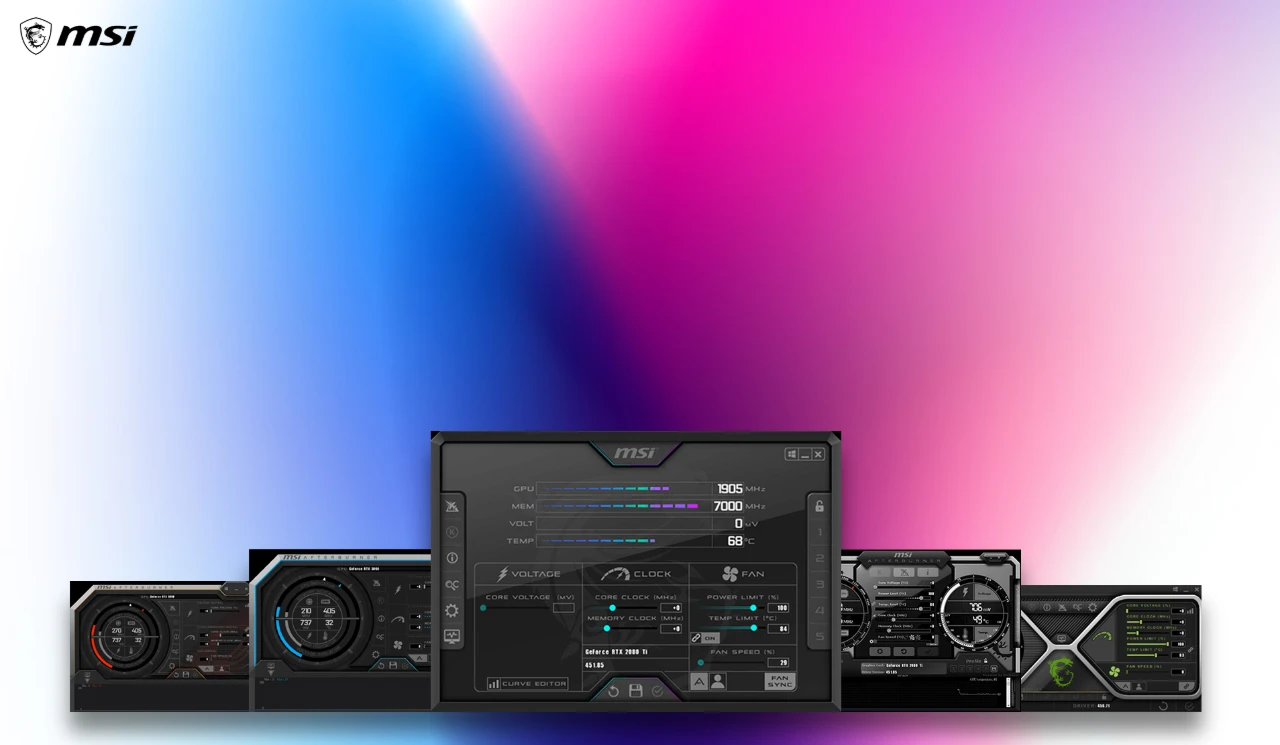
An Essential Tool for Graphics Card Enthusiasts
Official Website: https://www.msi.com/Landing/afterburner/graphics-cards
When playing AAA games, I always feel like my graphics card isn’t being fully utilised. When frame drops happen, I can’t tell if it’s due to insufficient performance or temperature holding it back. I installed several tools that conflicted with each other, causing lag in games. That’s when I found this tool that integrates overclocking, monitoring, and cooling adjustments, which has saved me a lot of hassle.
- **Don’t blindly believe that “one-click overclocking = massive performance boost”**: I tried one-click overclocking at first, which caused the game to crash immediately. Later I found out that the automatic scan gives the safe upper limit, and tweaking parameters randomly is very risky—casual players don’t need to bother with manual overclocking.
- **Works with non-MSI graphics cards too**: I initially thought it only supported MSI hardware, but tried it on my friend’s ASUS card and it worked perfectly. It saves the hassle of switching tools, no matter what brand your graphics card is.
- **Don’t enable too many monitoring metrics**: I had all monitoring items turned on before, which kept the frame rate stable in games, but my mouse occasionally lagged. Later I only kept frame rate, temperature, and power consumption, and it ran much smoother—unnecessary monitoring items just take up resources.
- **Don’t set fan curves to extremes**: I cranked the fan to full speed during high temperatures at first, which made the fan roar loudly during idle. After adjusting it to a gentler curve, the fan barely spins when idle and only speeds up automatically during gaming, balancing noise and cooling.
The core advantage of this tool is that it’s hassle-free—no need to switch between different software. You can handle overclocking, monitoring, and fan adjustments all in one interface. It has few background processes, doesn’t take up much memory, adds no extra load to games, and there’s no conflict between the tool and games for resources.
My experience with specific features: The automatic overclock scan is really convenient—one click to find the maximum stable frequency for your graphics card, and it hasn’t caused any issues in all this time, way more reliable than manual parameter tweaking. Custom fan curves can be adjusted based on your PC’s airflow: lower speeds if airflow is good, higher speeds during high temperatures if airflow is poor—very flexible. I only dare to make small adjustments to voltage, not too much, since it relates to power supply safety. After small tweaks, performance increased a bit, power consumption didn’t rise much, which is just enough.
- The advantages over similar tools are obvious: Other tools either only support their own brand (when I use an NVIDIA card, an AMD tool won’t work at all), have poor monitoring functions (only show frame rate, temperature readings are inaccurate), come with bundled software (adding useless shortcuts to the desktop after installation), or conflict with game anti-cheat systems (crashes immediately when playing online games). I haven’t encountered anti-cheat issues with this tool, and you can customise additional items during installation—just uncheck the ones you don’t need.
- Practical tips to avoid pitfalls: Don’t check third-party additional software during installation—some versions come with extra items by default, so check each checkbox carefully before clicking next. Don’t use very old versions; update occasionally, as new versions fix compatibility issues. An older version couldn’t recognise fan speed, but it was fixed after updating. Don’t run automatic scans while games are running—wait until you’re on the desktop, otherwise you might get unstable parameters. Set the monitoring overlay to a simple style; complex semi-transparent styles can conflict with game rendering, so place it in a corner where it won’t block the screen.
The target users are clear: For players who want to slightly boost performance in single-player AAA games without the hassle of overclocking, this tool is perfect. For users with multiple brand graphics cards who don’t want to switch between different tools, it works regardless of brand. For those worried about overheating and want to monitor temperature and adjust fans in real time, there’s no need to install separate temperature monitoring software—saves memory and is hassle-free.

 MSI Afterburner