Screenshots
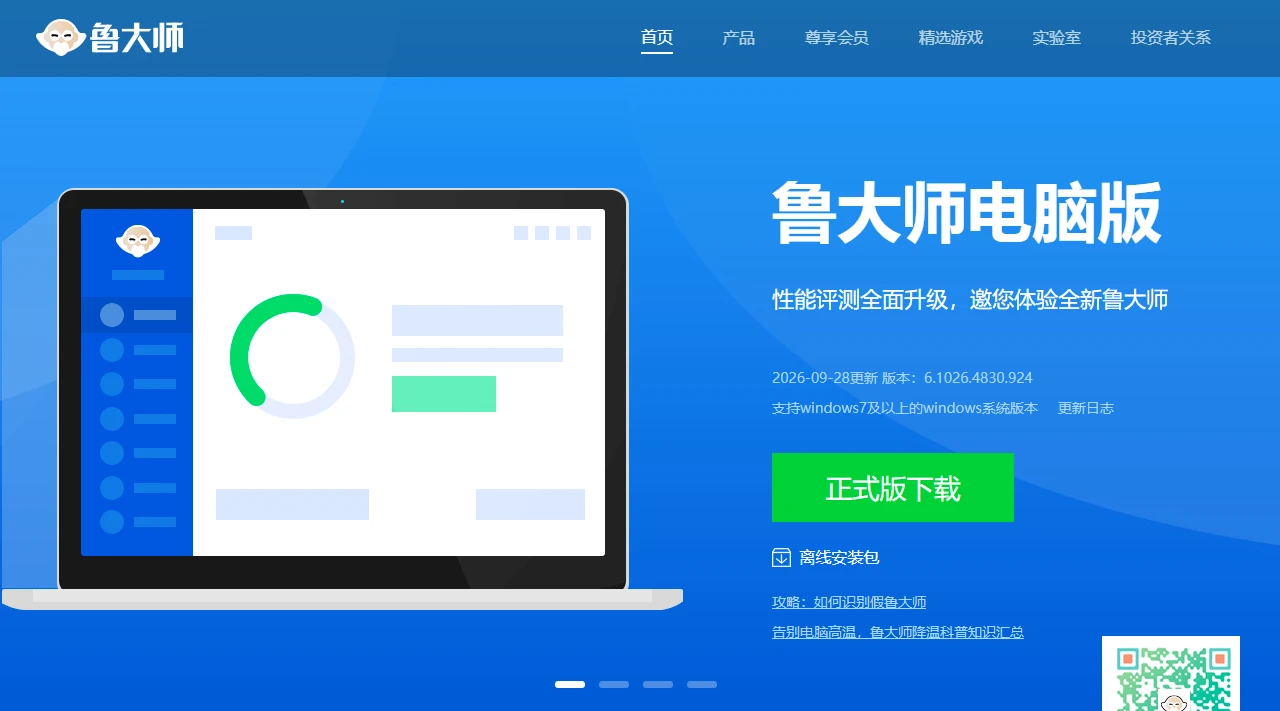
Essential hardware tool for PC assembly and verification: My real experience with Lu Master
Official Website: https://www.ludashi.com
When building a PC yourself, the main concern is that components might be swapped. Later, I felt at ease only with Lu Master. Here are some real experiences, all summed up after falling into pitfalls.
- The most common pitfall for newbies: When you first start, you rush to run the benchmark, but checking the hardware model first is the top priority — after all, the biggest fear when building a PC is that the merchant sends the wrong parts. No matter how high the benchmark score is, if the hardware is wrong, it’s all for nothing. Many people fall into this trap at the beginning.
- Core practical features of Lu Master: It’s really accurate for hardware verification. The parameters of CPU, memory, and hard drive are displayed immediately after testing. Compare them with the configuration list you made, and you can tell if you’ve been scammed. After I built my PC last time, checking the hard drive’s power-on time was completely in line with the new machine standard, and I finally felt relieved.
- Real experience with specific features: The temperature monitor has real-time alerts. When the CPU temperature rises sharply while playing large games, a pop-up reminder will appear. Before, my computer was lagging when playing games because I didn’t clean the dust in time; this function solved the problem. Driver installation is clearly marked as “Officially Recommended” or “Generic Version”, and it won’t force to bundle extra software, which is more worry-free than other tools. There’s also a performance ranking list, where you can check where your computer stands among those with the same configuration, so you have a clear idea.
- Advantages over similar tools: Some tools have inflated benchmark scores, but Lu Master’s scores are more realistic and not exaggerated. Some tools have so many ads that they affect operation, but Lu Master’s basic functions don’t have many ads, so you don’t have to close pop-ups frequently. It also has an Android version, so you can check hardware on your phone without finding another tool for phone verification, which is very convenient.
- Tips to avoid pitfalls I summed up: When installing, make sure to uncheck all additional software, otherwise you’ll install a bunch of useless mini-programs. When running benchmarks, close all background software, including browsers and chat tools, otherwise the score will be inaccurate. Don’t enable auto-start on boot; open it only when needed to save memory. Don’t trust the “One-Click Cleanup” feature, as it may accidentally delete system files; manual handling is more reliable. You don’t need to keep the temperature monitor running all the time; just turn it on when playing games, and it won’t take up resources when off.
- Suitable users: Newbies building PCs who are afraid of being scammed, people with old computers who want to check hardware status, gamers who need to monitor temperature to prevent throttling, and those who want to verify the authenticity of new hardware. These people can save a lot of trouble with it and don’t have to guess blindly.
Don’t treat it as a fancy tool; it’s a practical hardware helper. When newbies use it, paying attention to those small details can help avoid unnecessary trouble, and you won’t be distracted by messy functions.

 鲁大师