Seasonic
Seasonic's official power supply site is a reliable reference for choosing a PSU when building a PC
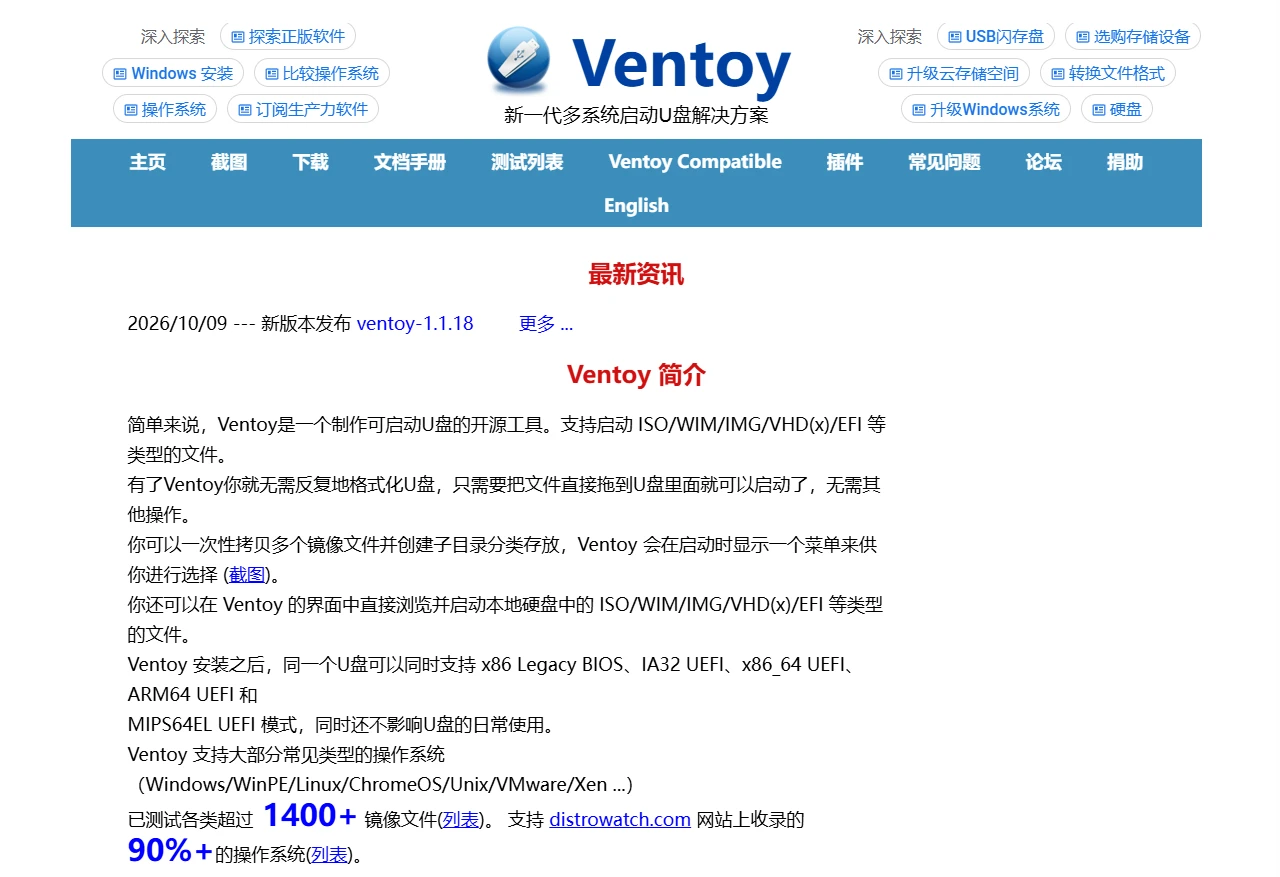
 Ventoy
 is an efficient auxiliary tool for installing operating systems via USB drives
Official website: https://www.ventoy.net
I used to suffer so much when installing an OS. Every time I made a bootable USB drive, I had to format it completely. When I wanted to switch to another OS later, I had to start all over again. I kept copying and deleting hundreds of megabytes of image files, and several cheap USB drives had their read/write speeds drop sharply from all the hassle, which was really frustrating. Later, I accidentally came across Ventoy and realised this thing really solves the headache.
Newbies most easily fall into several pitfalls, and I’ve tried all of them:
What I like most about it is **no need to repeatedly format the USB drive**. No matter how many OSes you want to install, just drag the image files directly into the Ventoy partition on the USB drive. Next time you install, plug in the USB drive, select the corresponding image to boot, and the previous images are still there — no need to recreate the bootable drive at all. This is a huge relief for people who often help friends install OSes.
Compared to Rufus I used before, Ventoy is much more user-friendly. For multi-OS installations with Rufus, you have to repeatedly select modes, fill in parameters, and worry about switching between Legacy for old PCs and UEFI for new ones — often mixing them up and causing boot failures. With Ventoy, whether it’s an old or new PC, regardless of whether Secure Boot is enabled, plugging in the USB drive automatically recognises the images. I tested a laptop with Secure Boot enabled and booted directly from its Windows 11 image without any errors. Bootable drives made with Rufus sometimes couldn’t be read in UEFI mode due to incorrect partition formats, but Ventoy has no such issue.
There are also these small details to note when using it — I only dare to say this after falling into pitfalls:
It’s suitable for people who often tinker with OSes, help others install OSes, such as PC builders, and regular users who occasionally switch OSes but don’t want to format the USB drive every time. If you only install an OS once, using the official bootable drive is enough — no need to bother with this. But if you install OSes frequently, or want to store multiple OS images on one USB drive, Ventoy is definitely a must-have. After all, no one wants to waste time making bootable drives and deleting files every time they install an OS; a tool that saves effort is truly good.