
PConline
PConline is a practical hardware reference platform for PC builders.
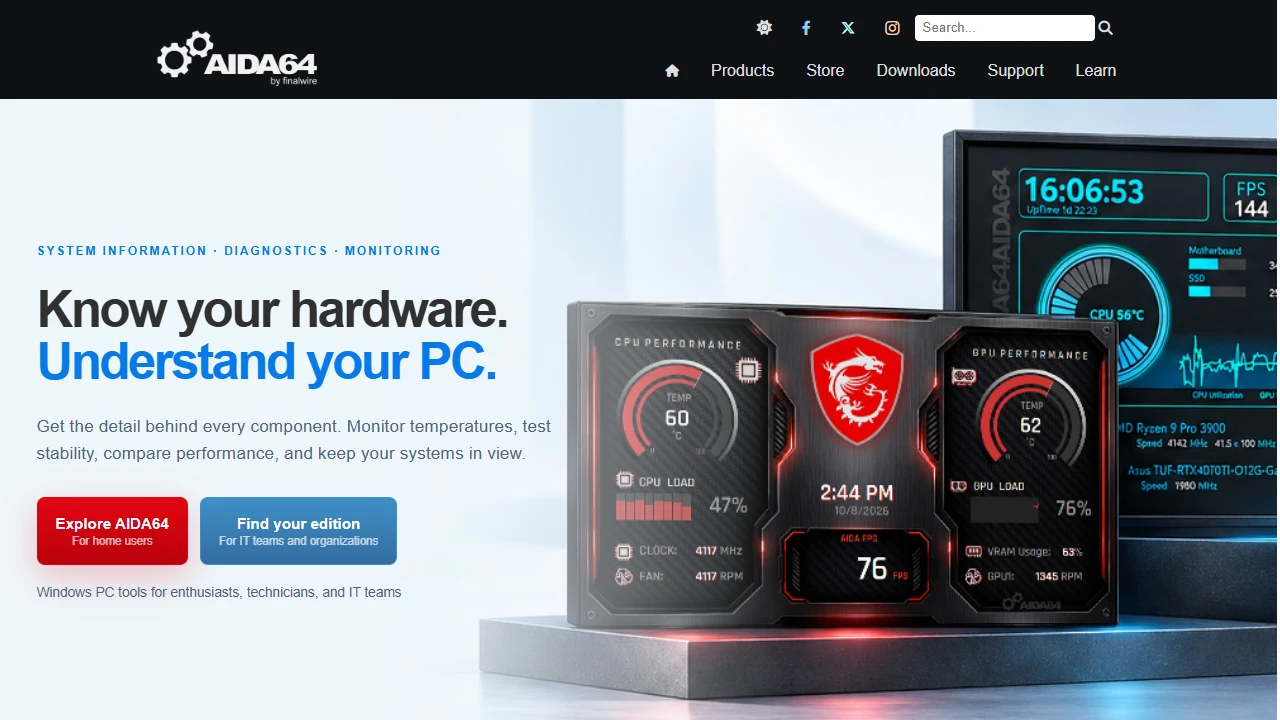
 AIDA64
Tips for using AIDA64, a tool for testing hardware stability after building a PC
Official website: https://www.aida64.com
When I had just finished building a new PC, I figured I had to test whether it was stable — otherwise a sudden blue screen or driver crash mid-game would be really annoying. At the time I was a complete hardware novice, so I just searched for a “stress test program” at random and used it, but after half an hour the CPU temperature had only just reached fifty degrees — it hadn’t even run a full stress test, which was a total joke. Later a friend who’s into hardware recommended this tool to me, and it opened up a whole new world — though I still hit quite a few pitfalls along the way, and beginners really do stumble easily.
What impresses me most about this tool is its hardware identification database — **its identification of less common hardware** is clearly a standout advantage. I have a solid-state drive from a niche brand in my machine. Other hardware detection software only showed “unknown SSD” without even the NAND chip model, but as soon as I opened this one, it clearly identified the brand, model and capacity, showed the SSD’s health and wear level in real time, and could even uncover the memory SPD parameters not displayed in the motherboard BIOS. That’s genuinely practical.
Later, while tinkering with case lighting, I wanted to hook up a small LCD on the front panel to display hardware data, and its custom sensor panel feature is brilliant — no need for a separate monitoring plugin; you just drag and drop the parameters you want, such as temperature, usage and voltage. The small screen on the front of my case now permanently shows CPU core temperature, memory usage and free SSD space, so I can check them by alt-tabbing out of a game without opening Task Manager in the background. There are also memory and cache benchmarks — the read/write speeds they measure are almost identical to the data from the professional testing tools I used before, far more accurate than those programs aimed at ordinary users.
I previously tried another commonly used hardware testing program, but its stress test only tested the CPU cores. My machine had a memory controller problem, and that program ran for half an hour without flagging anything. Switching to this one with the combined CPU + memory stress test, it detected a memory error in just ten minutes, which scared me into going back to check the memory’s compatibility — sure enough, there was a minor conflict with the motherboard. Also, other programs tend to give falsely high CPU temperatures during stress testing — even with adequate case ventilation, high-temperature warnings kept popping up. This one’s stress test is much more stable, doesn’t hog resources, and the temperatures it reports are real, not alarmist.
Let me offer beginners a few pitfalls I’ve hit. Don’t download it from dodgy websites; although the official website’s interface is in English, the features are easy to find. The trial version is enough for everyday use — no need to buy the paid edition. During a stress test, don’t wander off to do other things — at least keep an eye on the temperature curve. If the temperature suddenly spikes very high, stop immediately, as it means the cooling isn’t up to scratch. And don’t stress test for too long: for everyday stability checks, ten to twenty minutes is enough. If you really need to test long-term stability, make sure the front and rear case fans are running, otherwise the cooling won’t keep up.
This tool isn’t for everyone. If you’ve just finished building a PC and want to test hardware stability, or you enjoy tinkering with hardware and need to monitor real-time parameters, it’s definitely suitable. If you only play games now and then and don’t need to fiddle with these hardware details, there’s really no need to download it specifically — some features you simply won’t use. And if you’re a PC-building technician or a hardware reviewer, the tool’s professional features will come in very handy.