ShapecatcherDraw the shape of a symbol to find the corresponding Unicode character
Screenshots

Struggling to describe hard-to-find special symbols? Shapecatcher can help
Have you ever been in this situation: needing to add a niche academic symbol for a paper, looking for a decorative special character for design work, or encountering an unnamed symbol when handling multilingual content, only to spend ages scrolling through your input method’s symbol library without finding the right one? Shapecatcher is designed to solve this hassle — you don’t need to describe the symbol in detail; just draw its rough outline to find the corresponding Unicode character, saving you a lot of effort.
Official website: https://shapecatcher.com/
Finding symbols with Shapecatcher isn’t actually that complicated
Simple process that works right out of the box
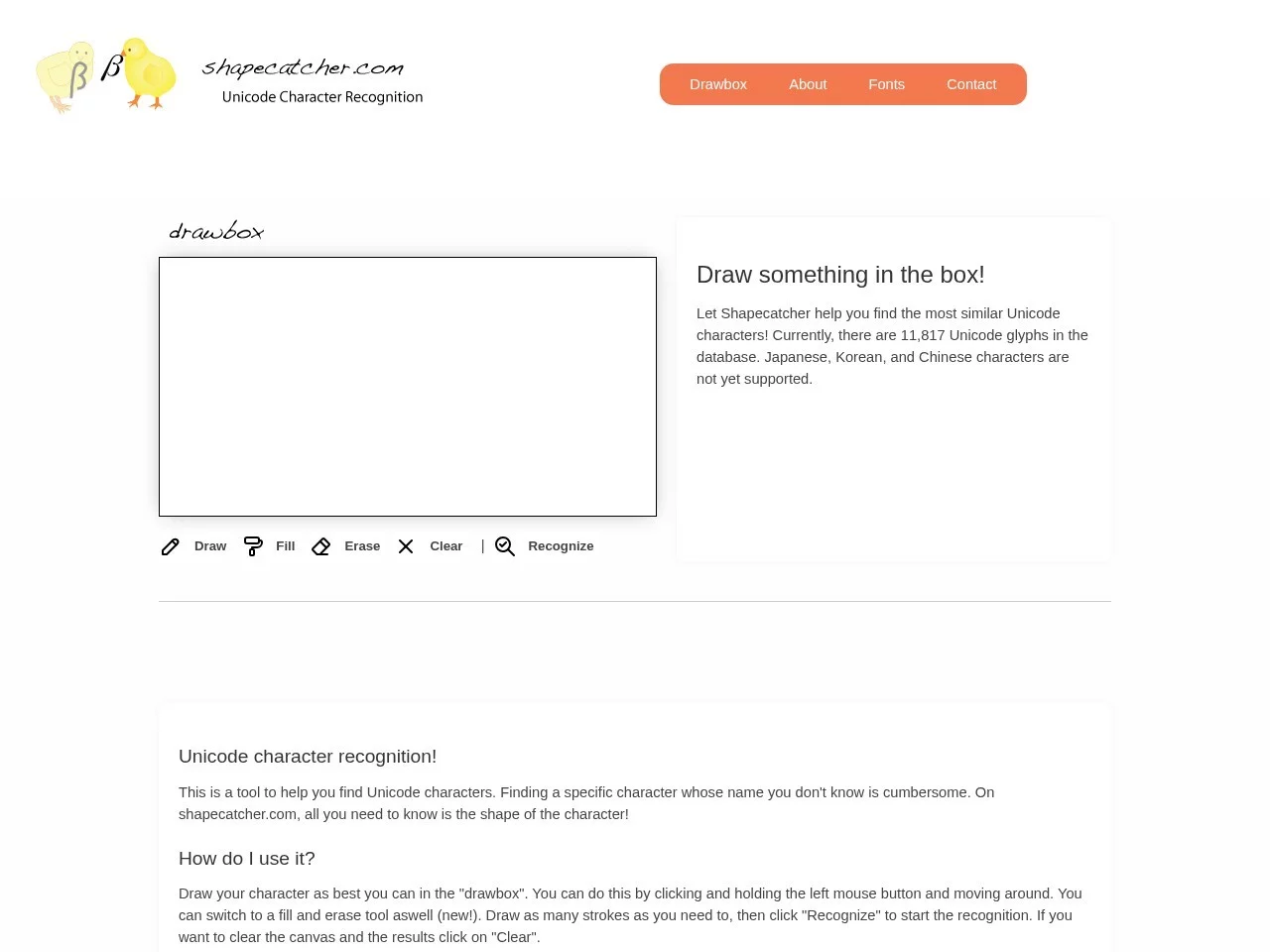
When you first visit the official site, you’ll see a blank drawing box in the centre. Don’t worry if your drawing is a bit wonky — just use your mouse or stylus to draw the rough outline of the symbol you need, like a line with a small bend or a shape missing a corner; you don’t need perfect precision. Once you’ve finished, click the “Recognize” button next to it, and the tool will automatically compare with Unicode characters in its database, list the most similar results, and include the corresponding character codes — you can just copy and use them directly.
Last time I helped a friend find a niche phonetic symbol, I got it right on the second try — way faster than flipping through a character table. Before, I spent almost ten minutes just trying to describe that symbol; with this tool, results came up in two seconds after drawing, saving a lot of time.
Who will find this tool most useful?
This tool is particularly useful for several groups of people. For example, developers often encounter unnamed Unicode symbols when writing multilingual apps or implementing special typesetting features — drawing them here lets you quickly locate the right one, without repeatedly debugging character matching issues. Creators doing typesetting design or writing academic papers, when encountering non-generic characters that they only remember the rough shape of, will find it far more efficient than searching through a character library. Even regular users, who occasionally need to input a special symbol, won’t have to rummage through a long list — just draw it and you’re done.
Additionally, the tool’s database contains over 10,000 Unicode characters, covering most common types of special symbols. However, one thing to note: it does not support recognising Chinese, Japanese, or Korean (CJK) characters — if you encounter such symbols, you won’t be able to use this tool to find them.
Practical details about Shapecatcher to keep in mind when using it
What enables it to accurately match drawn shapes?
The ability of this tool to find the corresponding character just by drawing a shape is backed by specialised technology. It uses the shape context mathematical method, which analyses details like the shape’s outline and point distribution to judge the similarity between different shapes — this is far more accurate than matching methods that only look at the rough outline. Even if your drawn symbol is a bit lopsided or distorted, it can still find a reasonable result, with good fault tolerance.
Can’t find the symbol? Try this solution
Sometimes you draw a symbol but don’t find it in the results — this is most likely because your computer lacks the corresponding Unicode font, so the system can’t display that character properly. Don’t panic: the official site’s download page has the corresponding Unicode font library. Download and install it, and this will fix the local font missing issue. After that, when using this tool to find symbols, they will display and work correctly.
I encountered this before: when looking for a niche mathematical symbol, it showed up blank. After downloading and installing the corresponding font library, it worked normally — very convenient.
Relevant Navigation
ICiba