GIGABYTE
Hands-on experience with the GIGABYTE official website and practical PC-building tips
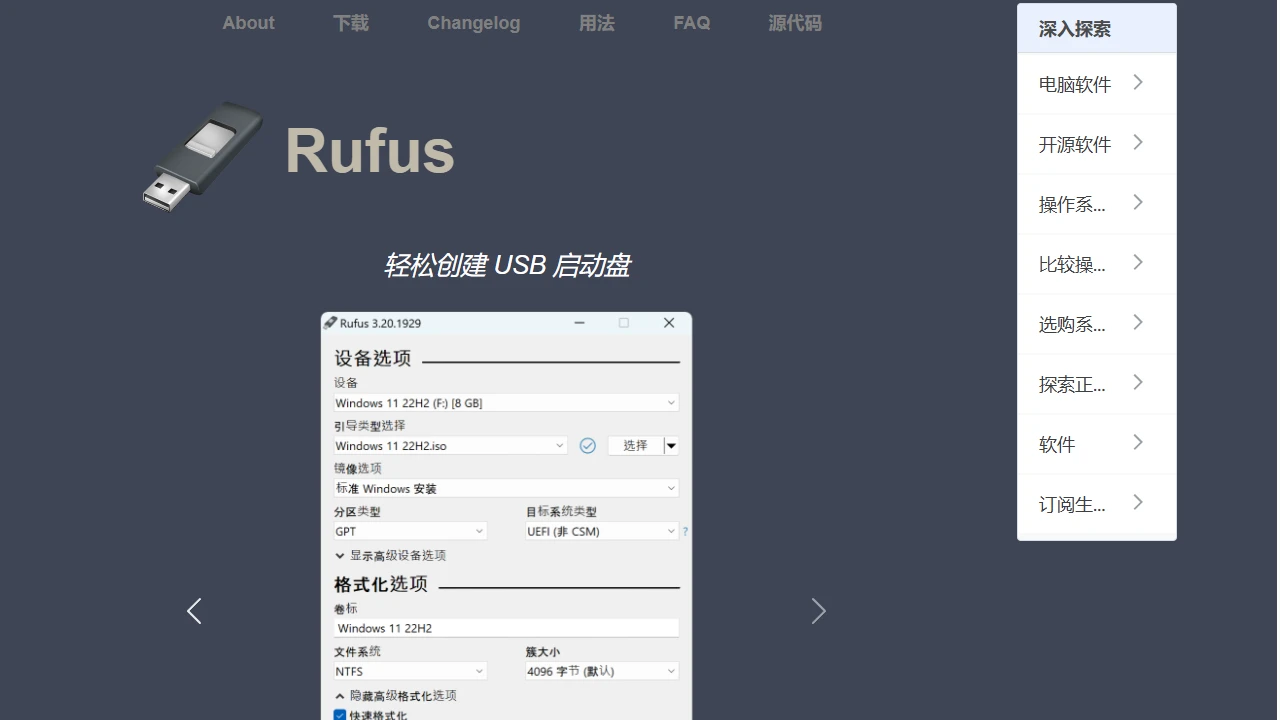
 Rufus
A recommendation of Rufus, a safe USB bootable drive creation tool
Official Website: https://rufus.ie/zh/
I first came across tools like this when installing operating systems for family members, and I stumbled into plenty of pitfalls along the way. Several tools I tried earlier either came bundled with junk, produced USB drives that failed to boot on other machines, or even popped up ads — after much hassle I still ended up with minor problems. Then I chanced upon this tool and haven’t switched since.
Many beginners run into trouble right from the start. Here are some pitfalls I’ve seen:
What appeals to me most is that it’s open source, with no bundled software whatsoever. It’s **portable** — it runs without installation, skipping the tedious setup process and saving a lot of hassle. Although the options on the official Chinese page are much the same as those in the English version, you don’t have to guess at unfamiliar English wording — selecting an image or switching boot mode, for example, is instantly understandable. What’s more, the program carries an **official digital signature**, so there’s no worry it might be a tampered, malicious version — reassuring for ordinary users afraid of being caught out.
I’ve made quite a few drives with it, from common Windows systems to Linux distributions, and even a DOS boot drive for flashing an old motherboard’s BIOS — it has never let me down. When creating a Windows drive, it automatically adapts to the current machine’s boot mode; if you want to change it manually, you can choose UEFI or BIOS without repeatedly fiddling with boot settings in the BIOS. For Linux, you can also select a persistent partition directly, so files stored after installing the system won’t be lost — far more convenient than other tools.
Compared with other similar tools, its biggest advantage is the absence of intrusive ads and bundles. A tool I used before required installing a main program, hijacked the browser homepage, couldn’t be fully removed when uninstalled, and left shortcuts cluttering things up. Some niche tools support only a few images, so you have to hunt around yourself for obscure systems, whereas its official website lists almost all commonly used system images — no need to fuss about. Then there’s the drive-creation speed: testing with the same USB stick, other tools take ages while it finishes in a few minutes, with a high success rate — I’ve hardly ever encountered a drive it made that wouldn’t boot.
That said, there are things to watch out for when using it, so don’t fall into these traps:
Quite a few people would find it suitable — computer enthusiasts who regularly install systems for others, IT staff handling device maintenance, and even ordinary users who occasionally dabble in Linux. It does have shortcomings: support for particularly niche systems is weak, and if the image you’re using isn’t on the official list, you have to adjust the parameters manually, which may leave beginners a bit baffled. But for most ordinary users’ daily needs, it’s more than enough — no need to go hunting for other tools.