AD Recommendation
Join Now
Important: Please do not trust the content and ads of various websites easily! Recommended reading: Safety Tips
AMD Driver Download
Scan to visit on your phone
1mos agorelease 278 00
0

AMD Driver DownloadAMD Driver Download

Sharing tips to avoid pitfalls and use AMD official driver downloads


Screenshots

AMD Driver Download

The correct way to get AMD drivers that I figured out after lurking in several A-GPU groups

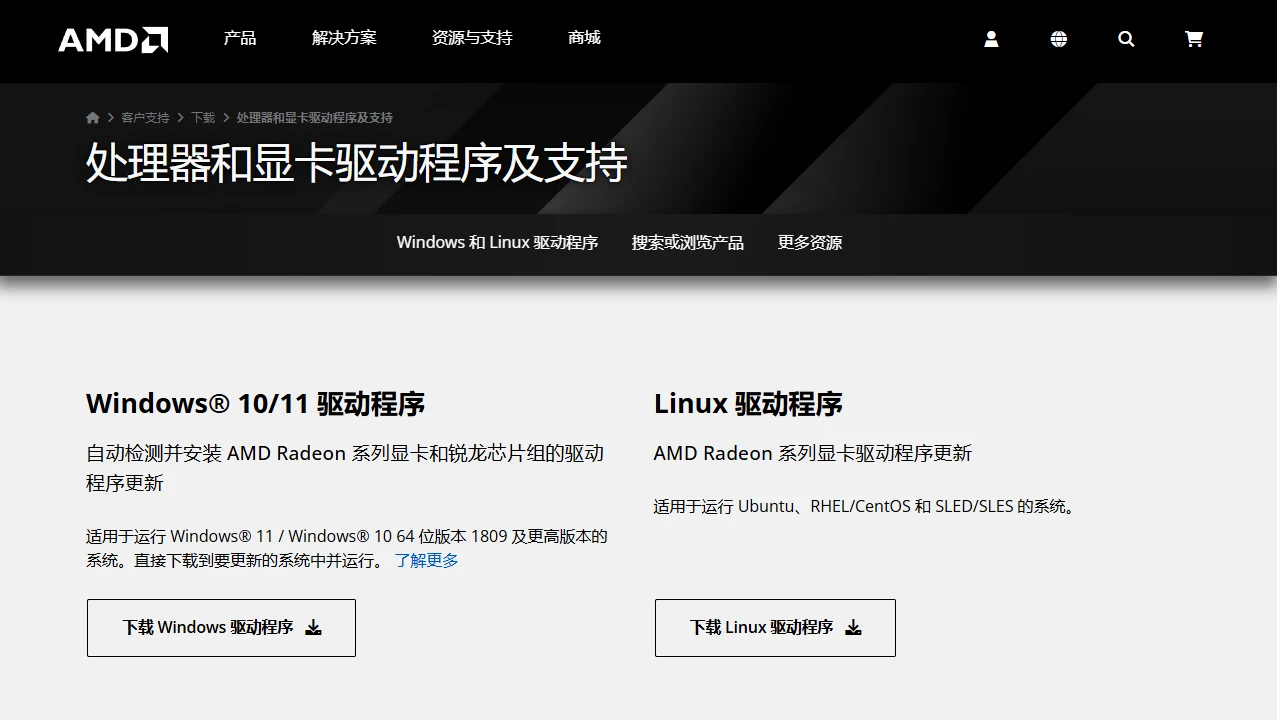
Official Website: https://www.amd.com/zh-cn/support/download/drivers.html

When I built my PC, I bought a second-hand RX580 and 5600X to save money as a temporary setup, but I hit a big problem when installing the drivers for the first time. I randomly searched for a website labeled “AMD Official Driver Download”, but after downloading from it, not only did the driver fail to install, but a bunch of mobile game recommendation ads popped up, and even a random software was secretly installed in the background. I spent the whole afternoon cleaning up all the bundled stuff.

Here are some pitfalls that newbies must avoid, don’t be like me:

  • Don’t trust the “AMD Official Drivers” you find randomly in searches—many third-party sites have malicious promotions. I fell for this the first time; the pop-up ads could crash my browser and left a bunch of useless residual files
  • Not all newer drivers are better. A later version caused frame drops when I played old single-player games, and switching back to the stable version fixed it. This official page also lets you find older versions, which is really thoughtful
  • Many people don’t know that Ryzen’s overclocking tool and A-GPU drivers are separate. Installing them together will cause compatibility issues. I clicked to install both at the same time, and the tool couldn’t detect the hardware; installing them separately solved the problem
  • Manually finding the model is a hassle, especially for old hardware—typing the wrong string of letters and numbers will lead to downloading the wrong driver. The automatic detection tool is a bit slower, but its accuracy is really high. After I changed my motherboard and re-detected, it correctly identified the new chipset driver in one go

The biggest advantage of this official page is that it’s completely free of bloatware. When downloading, only the driver option is available—no other software is secretly checked, and there are no random ads popping up. The Chinese interface is very comfortable to use; you don’t need to translate to English, and you don’t have to guess where functions are—just click where you need.

Some of the most practical features that I use daily: The automatic detection tool saves me from lurking forums to find “the latest driver for a certain model”—just click it and it scans the hardware automatically, saving a lot of time. The game tuning in the Adrenalin Suite: When I play strategy single-player games, adjusting the sampling rate a bit stabilizes the frame rate, and it also fixes the frame drops that used to happen at critical moments. Ryzen Master’s monitoring is more intuitive than in the BIOS; I overclocked the processor a little, and the temperature was even lower than the stock one—no need to worry about overheating. Also, the knowledge base: Last time the driver crashed, following the steps in it fixed it in 10 minutes, no need to search for posts everywhere.

I’ve compared it with other places, and this official one is really reliable. I tried third-party universal drivers before, and after installation, the game frame rate dropped a lot; switching back to the official one restored it. I also tried official sites from other brands—some require login to use the tools, but this one doesn’t, you can operate directly. Also, the updates that come with the computer are often old versions or not updated at all; the versions on this page are all stably tested, and there are backups of old versions, so you don’t have to worry about pitfalls.

Here are a few tips I’ve summed up after using it for more than half a year, don’t waste time:

  • Always use this official link, don’t search for the name and click on ad positions. I later saved this link to my favorites to avoid clicking on messy websites again
  • Don’t open other software (like games, browsers) during automatic detection, otherwise the hardware won’t be recognized accurately. Last time I opened Genshin Impact, the detection showed errors; after closing it, it worked normally
  • Don’t fully trust the “auto-optimization” in Adrenalin—some are for new games, and my old single-player games lagged. You need to manually adjust the games you often use, like lowering the shadow quality a bit to improve frame rate
  • When uninstalling drivers, don’t use third-party uninstall tools. Use the methods mentioned in the knowledge base or the official uninstaller. I used a third-party one before, leaving residual files that prevented the new driver from installing
  • Install Ryzen’s overclocking tool separately, don’t check it together with the driver. I installed them together before, and there was a conflict between the tool and the driver; installing them separately fixed it

This page is suitable for these people:

  • Players using the Ryzen + A-GPU combination—whether new or old cards, you must download drivers from here to avoid pitfalls
  • Players who want to adjust performance when gaming—Adrenalin and Ryzen Master have enough functions, no need to install other tools
  • People who often encounter driver compatibility issues—articles in the knowledge base can help troubleshoot, no need to search for posts everywhere

Relevant Navigation

No comments

You must be logged in to leave a comment!
Login immediately
none
No comments...