Screenshots
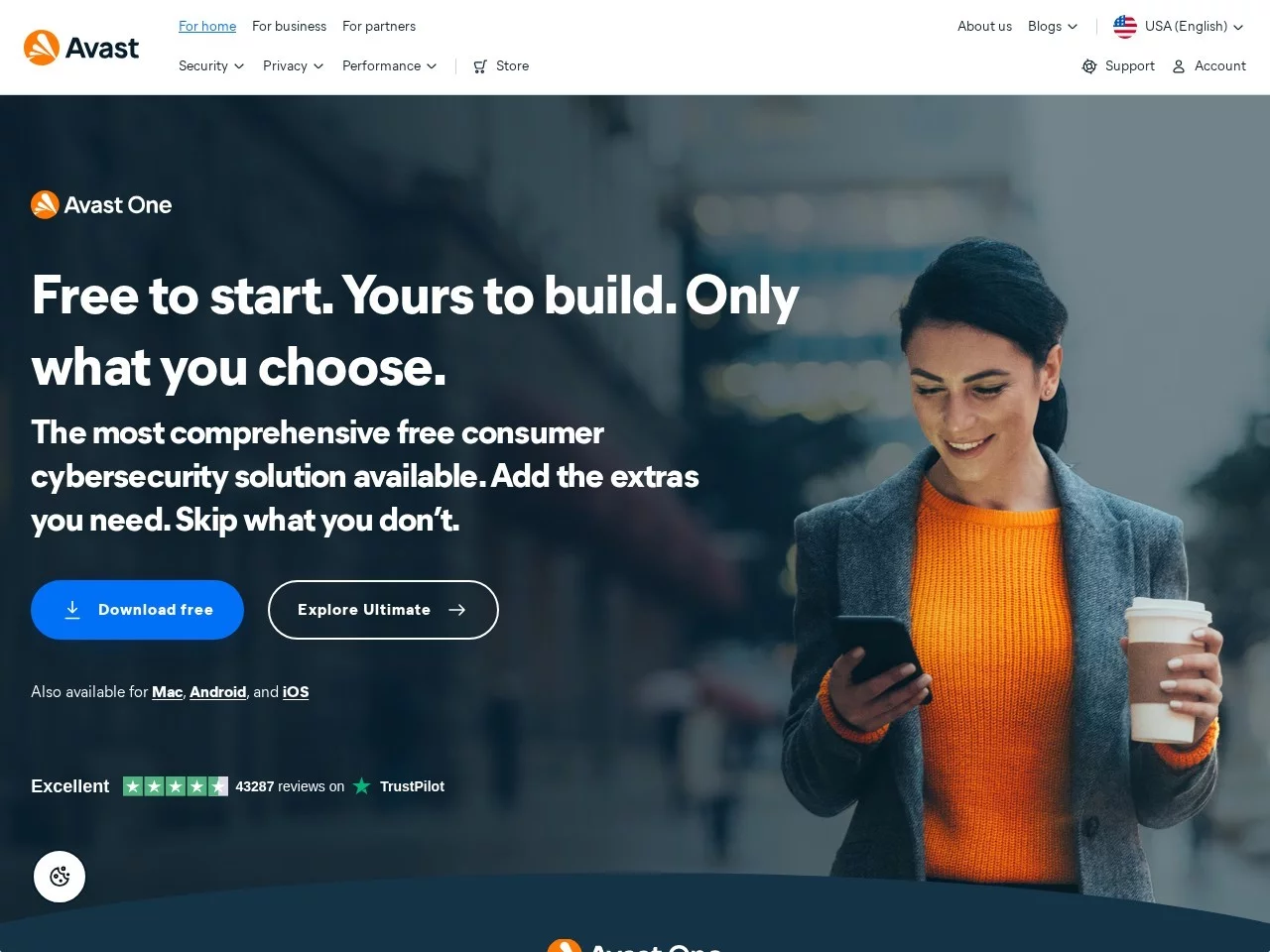
Long-term User Experience with Avast
Official website: https://www.avast.com
I’ve been plagued by computer security issues for ages. I never click random links, but my browser keeps spamming me with junk ads, and occasionally I get unknown installation packages. I was looking for a reliable free antivirus, but either the features were so limited it only detected basic viruses, or after installation it felt like my computer was infected—background processes secretly running and hogging memory, impossible to fully uninstall. It wasn’t until I tried this tool that I found something actually usable.
Key pitfalls for new users
- Never trust installation packages from third-party sources! The first time I downloaded one via a random cloud storage link, it came with tons of bundled bloatware and took me half a day to fully uninstall. Later I learned only the version downloaded from the official site is clean, with no extra programs.
- You don’t have to force registration for the free version! When I first opened it, a login pop-up appeared, and I thought I couldn’t use it without registering. Later I found I could just close it and use it normally—that pop-up is just to push you to upgrade to a paid plan, so ignore it.
- Don’t ignore the Wi-Fi scan feature! Most new users think it only does virus scans, but this feature is hidden in the security settings. A scan will show if your router is being used by unauthorised devices, and it also gives weak password alerts—this is more user-friendly than many similar products.
This vendor is reliable for security, not the kind that relies on pop-ups for quick profits. The free version doesn’t skimp on features—unlike some competitors that only offer a token free version, making you pay for actual useful functions. Its basic protection is solid, and it doesn’t take up too many resources, which is perfect for regular users. No need to mess with complicated settings—just open it and use it.
The most useful features after using it
- Virus scans are fast, and it can detect small viruses hidden in cache—not just those in installation packages. Background scans don’t slow down my computer or stop web pages from loading. I usually keep auto-protection on, and I don’t notice it running in the background—until one time the system popped up a virus alert, I realised it was actually monitoring.
- Malicious URL blocking is really useful. I once clicked a link that looked like the official site, and it was immediately blocked—the browser address bar turned red, and it gave a clear alert. I didn’t have to figure out if it was fake myself, which saved a lot of hassle. Other tools I used before often missed these fake links.
- The Wi-Fi security scan really solved my problem. Once it detected an unauthorised device connected to my router, and I fixed it by changing the password. This feature doesn’t require installing extra software—you can use it directly in the app, so no need to find third-party tools to check for Wi-Fi leechers.
I compared several similar tools, and this one has clear advantages. I tried other free security tools before—either they had so many ads you couldn’t use them, three pop-ups every time you opened them, impossible to close all; or they were missing features, couldn’t even block malicious URLs, and always installed bloatware that required cleaning the registry when uninstalling. This one has very few ads, almost no interference in the free version—only occasional prompts to upgrade, no other pop-ups. And after installation, there’s no extra stuff left, it’s completely clean—this hits my pain points perfectly.
Key details to avoid issues when using it
- Always download from the official site—installation packages from third-party sites almost always have bundled bloatware, even if they say “clean version”. I fell for this and wasted an afternoon uninstalling software.
- Check the options carefully during installation—some add-ons are ticked by default. Don’t just click next, uncheck all those boxes to avoid installing extra stuff.
- Don’t click the upgrade pop-ups randomly—the free version is enough. Upgrading to a paid plan just adds more in-depth privacy protection, which isn’t necessary for regular users, so no need to waste money.
- Do a manual scan regularly—set auto-scans to run when you’re not using your computer, like early morning. Don’t think it’s a hassle; sometimes auto-scans miss hidden viruses, but manual scans cover them.
- Don’t install this with other security software—they will conflict. Either keep only this one, or uninstall others before installing this. Otherwise, it will slow down your system and may block each other’s functions.
This isn’t for professionals—it’s for regular home users, computer newbies, people who don’t want to pay for paid software but are worried about viruses or Wi-Fi leeching. If you have very high security needs, like storing lots of sensitive data, you might need the paid version. But for everyday use—browsing the web, chatting, storing files—the free version is more than enough. No need to mess around, no complicated settings, just download from the official site and install it, saves a lot of trouble.

 Avast