
Avast
Practical user experience sharing for Avast free antivirus software
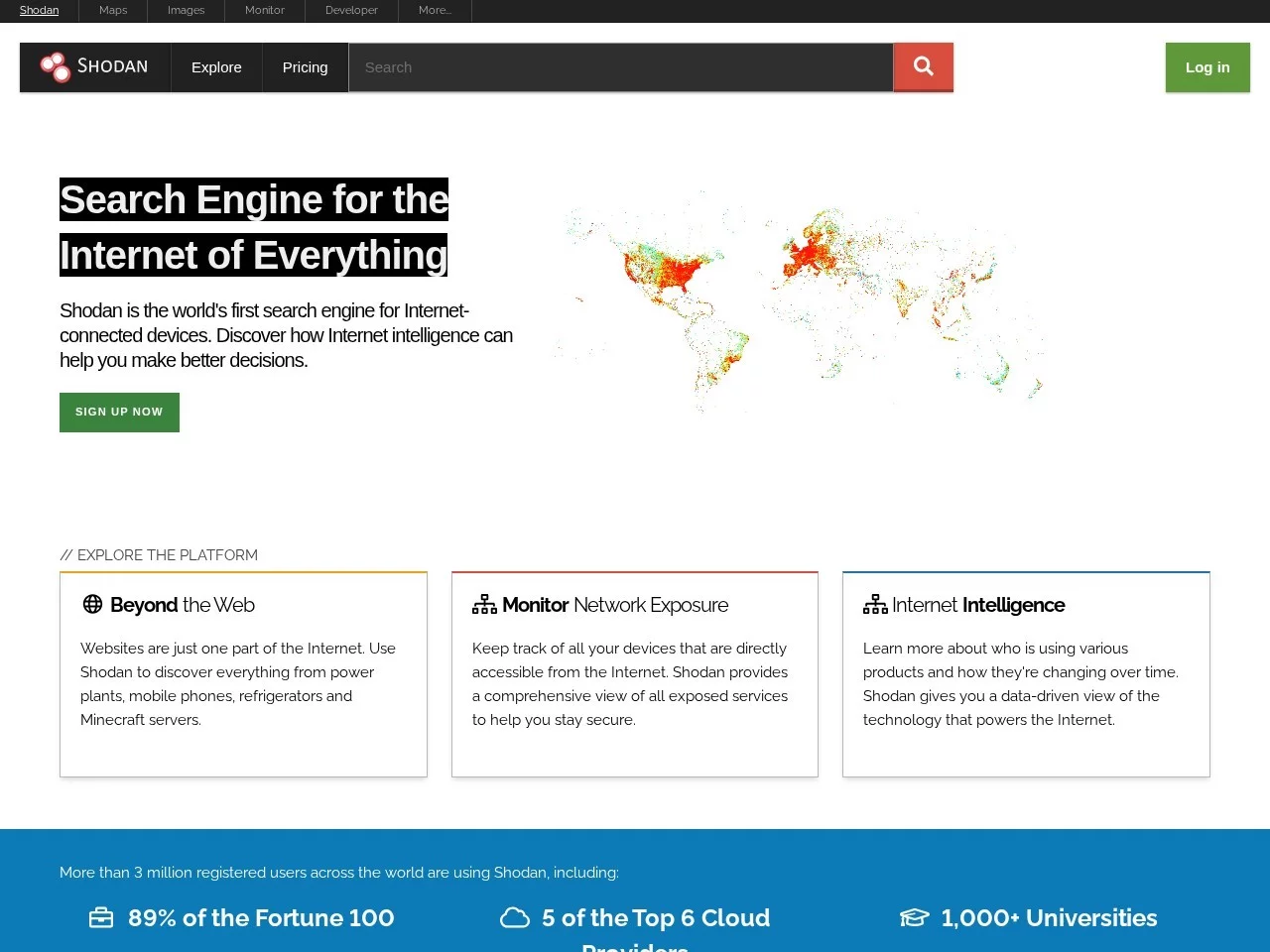
 Shodan
Lessons from Using Shodan, a Public Network Asset Retrieval Tool
Official Website: https://www.shodan.io
When I was working as an IT engineer for a small to medium-sized company, my biggest headache was sorting out the company’s publicly exposed devices. I used regular search engines before, but after searching for a long time, I could only find the official website, and I had no way to find other hidden servers, monitors, etc. Later, a friend recommended this tool to me, and I ended up making more mistakes than mastering skills while using it.
The first big pitfall when I started using it was mistaking it for a regular search engine. I searched for the company name right away, but all the results were irrelevant web pages, not even a single useful IP address. Later I realized that it’s completely different from search engines like Baidu that search for web content — this is a tool specifically for finding publicly exposed hardware and services, and it only works with **ports + precise filtering criteria**. For example, if you want to find servers in the company’s Shanghai region with port 22 open, you need to select the country/region and then enter the port number; only then will the results be usable, otherwise it’s all junk information.
Another common misconception is that a free account can do everything. I once tried to find the IP range of a certain industrial control device, but I couldn’t filter it out with the free version. After struggling for a long time, I thought the tool was bad, but later I found out that advanced filtering features require an additional subscription, wasting a lot of my time.
After actually using it, I think its core advantage is that it can dig up details of public network assets that similar tools can’t find. It doesn’t just give a domain address; it also shows the corresponding service version, location, and even basic status. For people like us who need to monitor the company’s public network security, this saves a lot of unnecessary troubleshooting work. For example, the company once said there might be some overlooked monitoring devices. I used this tool to search for the specified service type, and found several IP addresses that no one had noticed before. I quickly closed the unnecessary open ports, avoiding security risks.
In daily use, what I use most is not general keyword search, but precise combination of ports and protocols. For example, if you want to find websites with port 80 open, you need to add the http protocol; otherwise, all kinds of messy services that use port 80 will be mixed in. This is a small trick I learned after making several mistakes. Also, it can check the basic online status of each device, but the free account can only view the first few pages of results; if you want more, you need to adjust the paid quota. Pay attention to this, don’t waste the quota on useless content.
I’ve compared several similar tools, and this one really stands out: some have ridiculously messy results, with mountains of outdated and duplicate information, and extremely low accuracy; some can only search for domains, not directly scan hardware devices; others require very complex filtering configurations that beginners can’t handle at all. Although this one occasionally has small deviations, its overall accuracy and ease of use are much better than others, and it can really solve practical problems.
Here are some practical tips to avoid pitfalls, all summarized from my mistakes:
This tool is mainly suitable for enterprise IT engineers, security personnel, and security researchers; even ordinary users who want to check the exposure of their home smart devices can use it. But it’s not suitable for people who only want to search for web content, because it’s not designed for that — it’s a tool specifically for public network devices and services. If you just want to find the content of a certain website, use a regular search engine, there’s no need to bother with this.