Text to ImageFree online text-to-image tool
Screenshots

Many people have fallen victim to the problem of their text being easily copied and pasted — a takeaway that took half an hour to write can be copied and pasted in just 3 seconds, with not even the bother of changing the author’s name. In fact, there’s a simple way to avoid this hassle: convert your text into an image.
First, clarify your needs
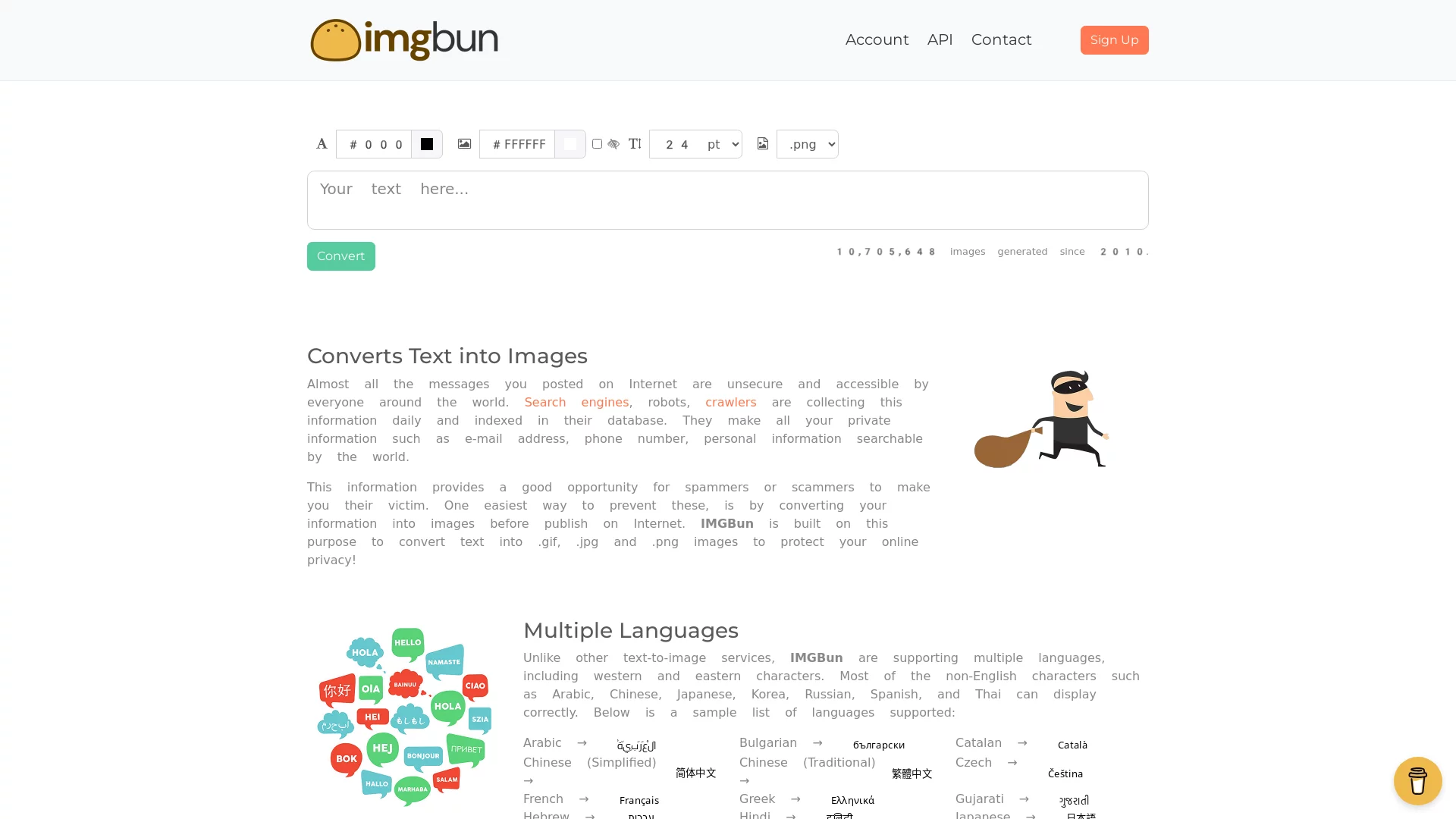
Official website: https://imgbun.com/
Don’t underestimate text-to-image conversion — it’s not just about sticking words on a background. You need to be clear on whether you want privacy protection, content anti-theft, or just neater text formatting. For example, if you send a client’s contact address in a work group, plain text can easily be scraped and saved in bulk. When converted to an image, anyone wanting that information has to type it out manually, which creates a much higher barrier.
If you create original content, turning key quotes or exclusive opinions into images means copy-pasters can’t grab them in one click — they have to spend time typing them out manually, which naturally reduces the incentive to plagiarise. Some platforms are too rigid when scanning plain text for keywords, so even normal shared content might be misjudged; converting to an image removes this risk.
Choosing the right tool cuts your workload in half
You don’t need to download complex software — the online tool imgbun is enough. Just open its official website to start, do everything in your browser, and you don’t even need to save an installation package. Its logic is simple: no fancy features, just render the text you input into an image, and save it for use.
The whole process has no complicated parameters — even if you’re using such a tool for the first time, you can get the hang of it in three to five minutes. After inputting text, you can adjust the font size and colour according to your needs; no need to fuss over complex settings, just click the convert button when you’re done. Once you have the image, it’s convenient to share it in chat groups, on social media, or save it as reference material.
Who will find it most useful
Text-to-image isn’t just for content creators — it’s useful in many everyday scenarios. For example, regular users sending contact details will find images safer than plain text; students turning key notes into images won’t have their formatting messed up when switching devices; office workers making to-do lists will find images more eye-catching than plain text; e-commerce operators turning campaign rules into image assets keep a consistent style while preventing content from being altered.
In short, whenever you need to fix text content and don’t want others to take it easily in bulk, you can try this method. It’s not complicated: just turn the text you want to fix into an image, and whether you use it yourself or share it with others, it will achieve the desired effect.
Making the generated image more useful
Font size and contrast are the most important details to note. Text in an image can’t be scaled automatically like system fonts; if the font size is too small, others will struggle to read it, defeating the purpose of sharing. The contrast between text colour and background must also be sufficient — avoid light grey text on a white background, as it’s straining on the eyes and easy to overlook.
Also, don’t make the image too flashy. Adding too many effects or complex backgrounds will distract attention and make key text hard to read. Keep a simple style, highlight the core content, so whether you save it for yourself or send it to others, it will function at its best.