YingjingtuAdd subtitles to GIF images
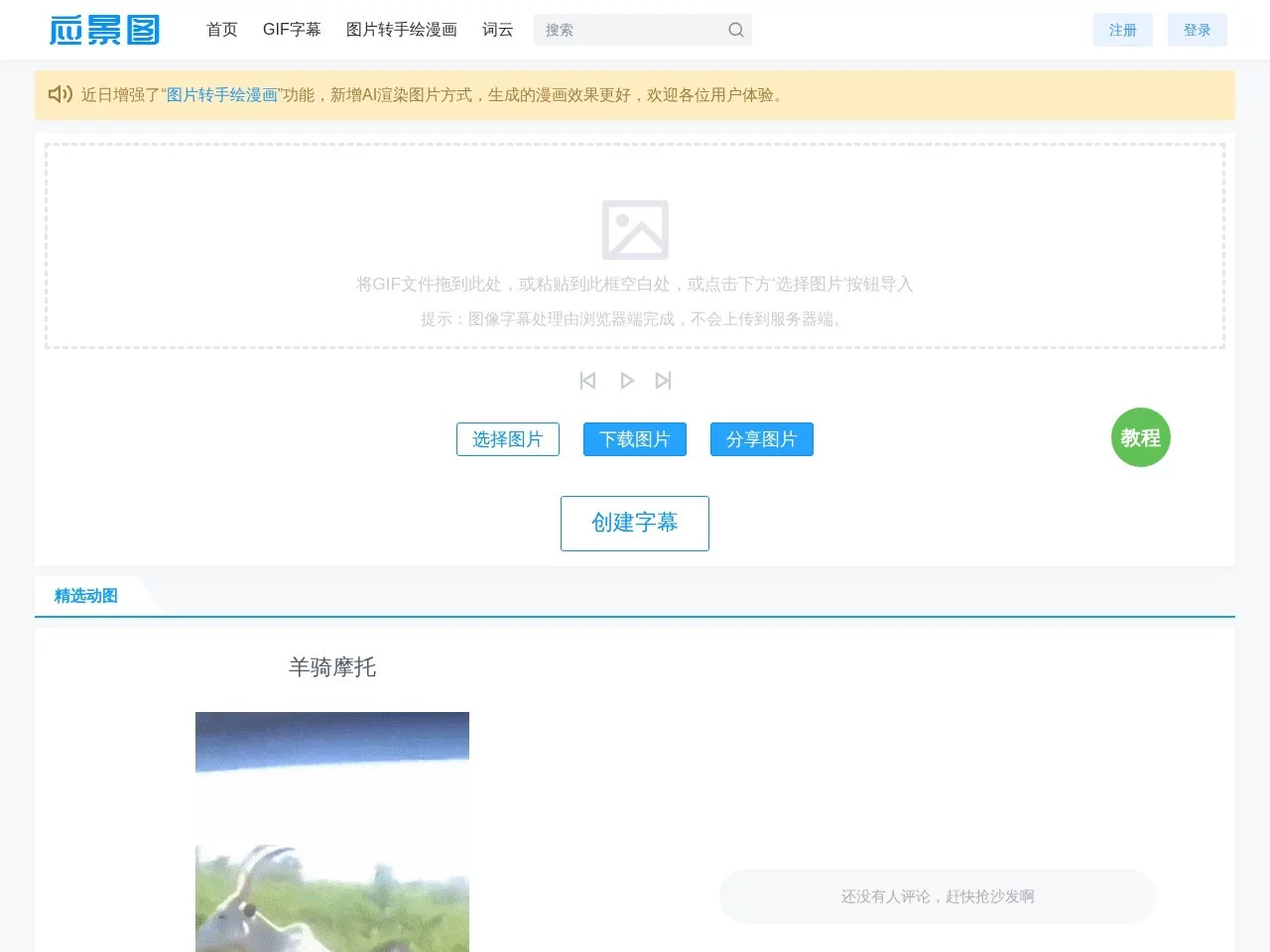
Screenshots

Many people want to add subtitles to GIFs, and their first reaction is either to spend half a day fumbling with professional editing software, or to repeatedly try out mobile apps. The result is either the operation is too complex to give up, or the subtitles made are either blurry and unreadable, or block the key parts of the GIF. In fact, there is a more convenient choice to avoid these pitfalls.
GIF Subtitle Tool That Doesn’t Require Software Installation: Compared with Professional Software
Many people struggle with two options when making GIFs with subtitles: either use professional software that needs to be downloaded, such as Premiere or Jianying, or find online tools with messy functions. The former takes half an hour to learn basic operations, while the latter may even fail to upload a larger GIF. Yingjingtu is right in the middle, an online tool specially designed for adding subtitles to GIFs. No need to download or install, just open the webpage to use, it won’t take up computer memory, and no need to remember shortcut keys.
Official website: http://www.yingjingtu.com/
Really Quick to Get Started, Beginners Can Handle It in 1 Minute
Compared with tools that require clicking three or four menus to find the function, Yingjingtu’s operation logic follows user needs, no need to think much at each step, beginners won’t make mistakes when following. No need to remember complex processes, just follow the actual operation:
- Open the official website, directly click the “GIF Subtitles” entry at the top, no need to rummage through a bunch of functions
- Uploading a GIF won’t take long: either drag the local file directly to the blank area of the page, or click the “Select Image” button at the bottom to choose manually, both methods work
- After uploading, click “Create Subtitle”, a draggable subtitle box will pop up on the page, just enter the content, no need to adjust strange parameters
- Adding multiple groups of subtitles is simple: click “Create Subtitle” again, repeat the steps of inputting and adjusting
- When everything is done, click download, the GIF with subtitles will be saved directly to the local, no need to wait for export for a long time
Many Adjustable Details, Subtitles Won’t Look Ugly
Some people think online tools have few functions, making subtitles that don’t match the GIF. Yingjingtu has left several practical custom options, not perfunctory settings that only change fonts. The adjustable parts are all related to subtitle presentation: such as font size, which can be adjusted by dragging according to the proportion of the GIF frame, so there won’t be cases where the font is too large and takes up the whole image; font color and stroke color can also be selected. If the GIF itself has mixed colors, adding a black or white stroke can make the subtitle stand out from the frame; you can also drag the subtitle box directly, place it wherever you want, just avoid the character movement area in the GIF.
When to Use Yingjingtu? Comparison of Adaptation Scenarios with Other Tools
Usually, when making GIFs with subtitles, different people have different needs. Yingjingtu is more suitable for these situations: for example, adding funny subtitles to a funny GIF when browsing social media, or adding voiceovers to GIF materials when editing short videos, even students inserting explanatory GIFs in courseware, it can be done quickly. Compared with professional software like Premiere, it doesn’t take time to learn editing logic, nor does it take a long time to export; compared with mobile apps, it can handle larger GIF files, and won’t get stuck due to insufficient mobile memory.
Yingjingtu can help avoid the pitfalls that people often step on when using online tools: for example, previous GIFs were unreadable because the subtitle color was close to the background when browsing, Yingjingtu’s stroke setting can solve this – choose a stroke with high contrast with the frame, even if the GIF is colorful, the subtitle will be clear. Also, for GIFs that need to be divided into scenes with different subtitles for different frames, using its multi-subtitle function, no need to repeatedly import and export files, it can be done at once.
Pay Attention to These Points When Using, the Effect Will Be Better
Although the operation is simple, there are still a few small details to note, which can save a lot of effort. For example, the uploaded GIF should not be too large, generally controlled within 100MB, otherwise either the upload will fail, or the processing will take a long time; when adding subtitles, try not to place them in key positions where characters run or expressions change in the GIF, otherwise others will be blocked from the core content when watching the GIF; when adjusting color and stroke, try to choose ones with high contrast with the GIF frame, such as white text with black stroke for dark backgrounds, black text with white stroke for bright backgrounds, which not only makes the subtitle clear, but also won’t destroy the overall feeling of the GIF.