Icon MakerFree online creation of app icons, no registration required to download
Screenshots

Many people get stuck on finding the right icons when doing web design, APP development, or small personal projects—either the icons found have copyright issues, or it takes half an hour just to change the shape and adjust the color, not to mention the complex operations of professional software. Actually, there’s no need to worry; there’s a tool that can solve all these problems clearly.
Why is Icon Maker a hassle-free choice for icon creation?
Official website: https://icon.ray.so/
I previously made test icons for a Raycast extension for a friend, tried several online tools—either requiring registration and phone number binding, or the exported icons get blurry when scaled up. It wasn’t until I encountered Icon Maker that I realized making icons could be this smooth. Developed by Raycast, this tool’s core is to lower the threshold of professional design to the minimum. Even if you don’t know the basic operations of PS, you can create icons suitable for various scenarios in a few minutes, without needing to remember complex commands or spend time searching for materials.
Can you use it without registration? Is this reliable?
Many online design tools take registration as a threshold—without filling in a phone number or binding an account, you can’t even use the core functions, or a payment window pops up after a few uses. Icon Maker has none of this. You just open the official website and start making icons directly. From selecting styles to adjusting details, to final export, you don’t need to submit any personal information, and there are no hidden payment items. Last time I made event icons for a club temporarily, I didn’t register, exported directly after finishing, left no traces, and didn’t receive any promotional text messages. This is very friendly for people who need to use icons temporarily.
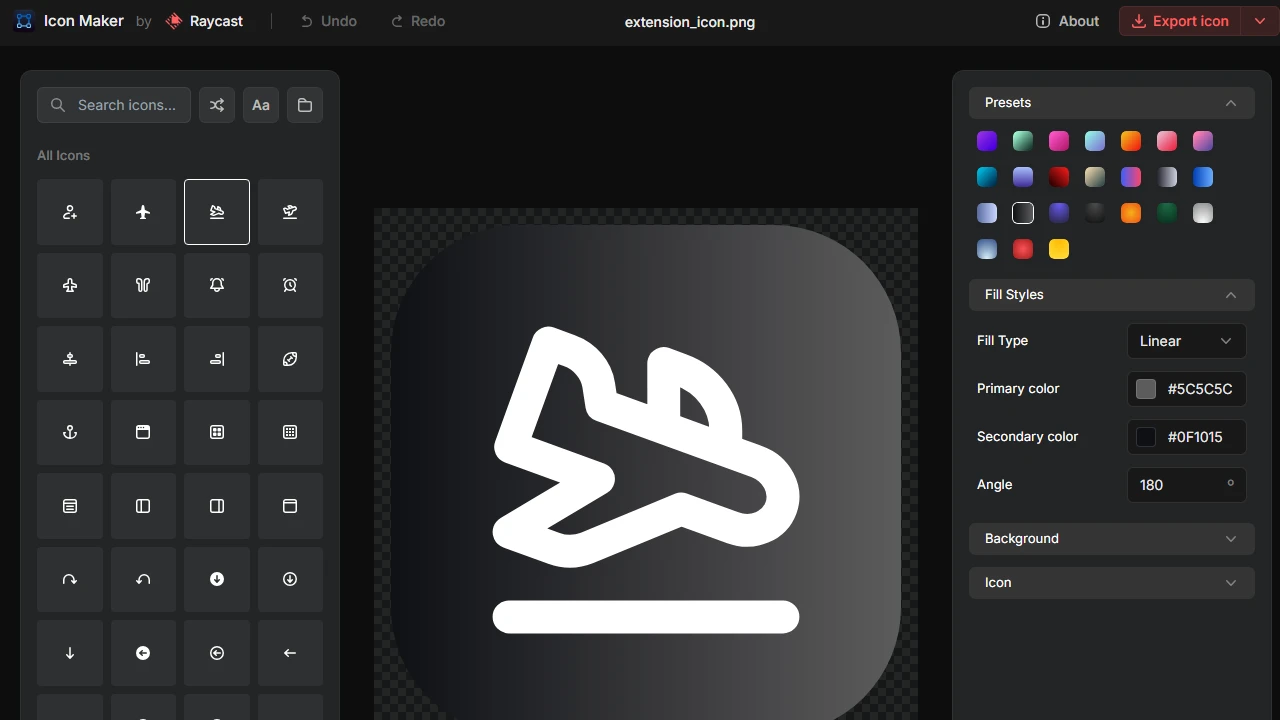
Its interface design also understands the usage habits of ordinary people. On the left is a ready-made icon style library, where you can filter directly by style or purpose, without sifting through a bunch of irrelevant materials. In the middle is a real-time preview area—when you click to adjust, the preview box immediately changes the effect, so you don’t need to switch pages back and forth to confirm. The customization panel on the right categorizes all adjustment items, so beginners won’t be confused by a bunch of buttons. The entire interface has no extra elements, all operations are centered around “quickly generating images”, making it very smooth when you’re in a hurry.
Is the customization function of the free tool sufficient?
I also thought before that the customization functions of free tools would definitely be limited, at most changing colors and shapes. But Icon Maker has more options than I expected. Besides basic style selection, you can adjust the background—either solid color or gradient, even add small effects like textures or glares. Adding these details immediately gives ordinary icons a sense of quality. Last time I made an icon for my personal blog, I added a light gray texture, which looked much better than a flat icon.
The color adjustment part is also considerate. If beginners don’t know what colors to choose, they can directly use the preset color schemes, no need to struggle with matching. If there are specific requirements, like making an icon for a Raycast extension, you can directly input the brand color’s hex code for precise matching, no need to try repeatedly. Last time I made an extension icon for a friend, I directly used Raycast’s brand blue, and the result matched the official style perfectly. Even my friend asked if I had a professional designer modify it, but it was just adjusted with this tool.
Wrong export format? Just use Icon Maker?
The ultimate purpose of making icons is to use them; if the format is wrong, even the best image is useless. Icon Maker has considered this point, only providing two common formats: PNG and SVG, covering most scenarios. PNG has high clarity and won’t blur when inserted into web pages or documents. SVG is a vector image, which won’t distort when scaled up or down, making it especially suitable for APP launch icons or social media avatars—no issues due to size changes. Last time I made a blog icon, exported as SVG, when uploaded to social platforms, it looked the same whether as a small avatar or a large cover.
Its applicable scenarios are not limited to Raycast extensions—web navigation bar icons, small icons for APP development, and illustrations for course assignments are all usable. Students doing homework, designers rushing projects, and individual creators making small works don’t need to search everywhere for free icons or learn complex software to modify images; they can start making as soon as they open the tool, saving time to do many other things.
What are some practical tips for beginners using Icon Maker?
I also made mistakes when I first used it—focusing on details right away, and ended up spending half an hour without making a decent icon. Later, I found a few tips. Don’t get stuck on small details at the start; first filter basic icons with similar styles from the left style library, so there are fewer changes needed later, saving time. When adjusting colors, try the preset color schemes first—most cases will get good results. Once you’re familiar, you can play with custom colors and effects. Before exporting, don’t forget to check the effect at small sizes in the preview area, like a 16×16 pixel navigation icon—whether details will blur. Adjusting in advance is more convenient than modifying after export.
Whether it’s a small personal project or a commercial scenario that needs to meet specifications, Icon Maker can help you quickly make icons you’re satisfied with. Its core is efficiency, free, and easy to use—no complex learning cost, no hidden payment traps, truly making icon design a hassle-free task.