Image BlurOnline tool for converting images to mosaics, low-pixel, and blurring images
Screenshots
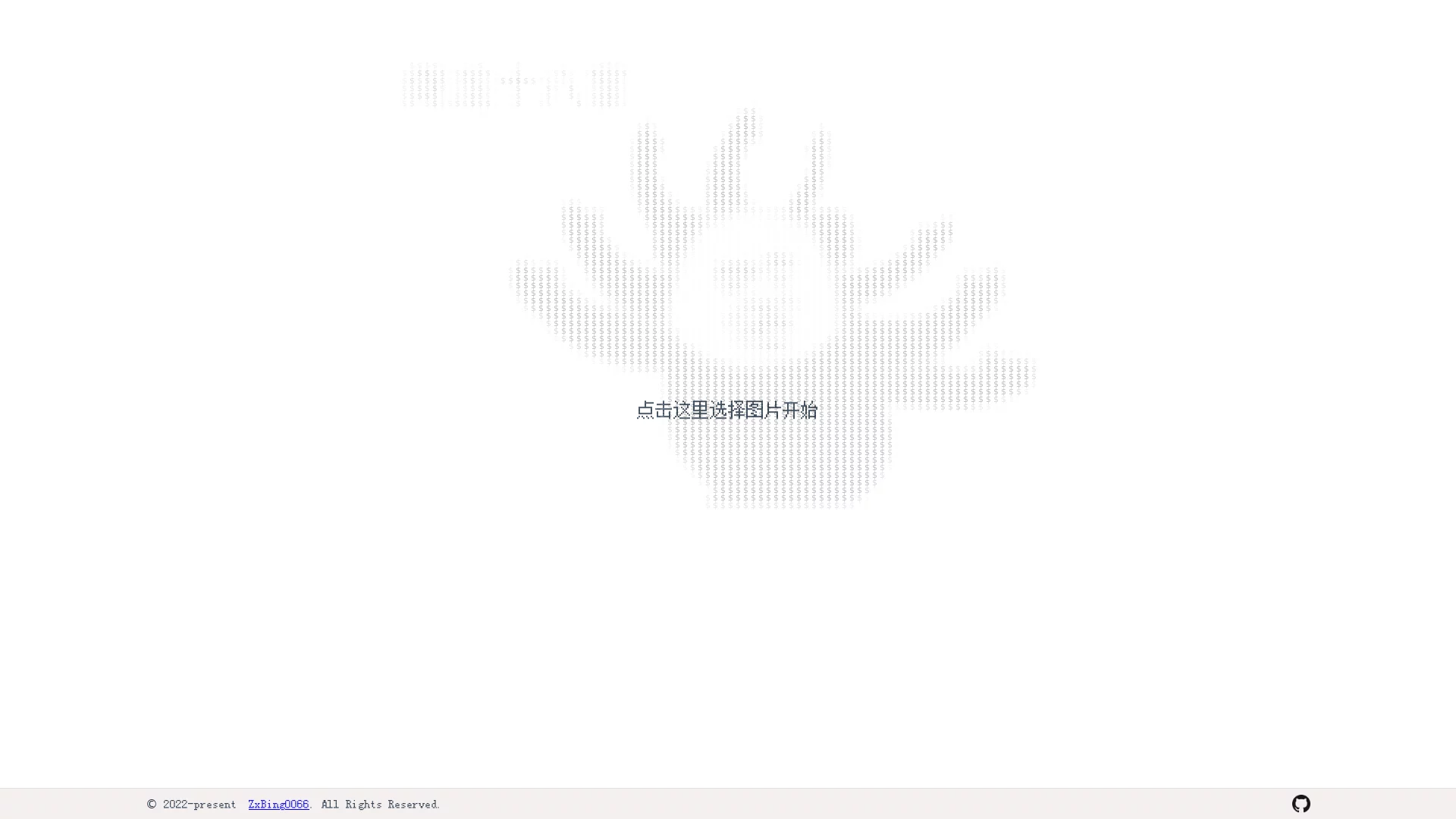
Want to turn a screenshot into a pixel art avatar? Want to censor chat records but find photo editing software too heavy? The Image Blur online tool is designed for exactly such needs — no software to download, just open the webpage, upload your image, and you can convert the photo to a mosaic, blurred, or low-pixel image with one click, with results ready in seconds.
Image Blur: An Online Pixelation Tool That Solves “Censorship Anxiety”
Official website: https://pixel.heyfe.org/
This tool has a very focused core function: converting uploaded images into mosaic, blurred, or low-pixel images. It prioritises “lightweight” and “instant use” — no complex interface or operational barriers, making it an efficient small tool that you can add to your browser bookmarks and open whenever needed.
The function may seem simple, but it does “pixelation” quite meticulously: it not only supports the common square pixel effect, but also allows adjusting the output in multiple custom ways, and can even turn images into pixel art made of characters — far more fun than ordinary censorship software.
More Than Just Censorship: Multiple Pixel Styles to Choose From
When it comes to blurring and pixelating images, different presentation styles make a huge difference in the visual experience. This tool offers multiple generation options, which you can freely choose based on your needs:
- Square Pixels: The classic mosaic effect, cutting the image into small blocks, ideal for censoring private information, and also has a retro video game vibe;
- Dot Pixels: Reconstructs the image with dense dots, visually more delicate, perfect for decorative poster materials or social media avatars;
- Text Pixel Art: Spells out the image outline with characters, combining the fun of both images and text, often used to generate personalised signature images or bullet-screen style memes;
- Low-Pixel Image: Reduces the overall resolution, retaining the general outline and colours, creating a nostalgic atmosphere like “ancient game screenshots”.
All effects support custom adjustments — after uploading, you can preview while modifying parameters, and export once you get the result you want, with no design skills required for the whole process.
Three Simple Steps: Upload, Adjust, Download
The tool has almost no learning curve, with the entire process taking just three steps:
- Open the Image Blur tool website;
- Click to upload an image that needs processing;
- Modify the relevant parameters based on the preview effect, and download the image once you are satisfied.
The whole operation is seamless, usually taking just a few seconds from upload to getting the final product. Parameter adjustments take effect instantly, so feel free to try different style combinations — you’ll often find unexpected results after a few attempts.
Advanced Features: Embed Pixel Art in Web Pages
If the basic pixelation function meets daily censorship needs, then the CSS export feature is an Easter egg for front-end developers and bloggers.
It supports exporting processed images as pure CSS pixel art — meaning the final product is not an image file, but a piece of code that can be directly used in web pages. For users building personal homepages or writing tech blogs, this pure-code embedding method for pixel art is more flexible and has more stable display results.
What’s more interesting is that it also supports generating CSS pixel art animations. Turning static pixel art into an animated sequence, it becomes a ready-made decorative element when added to a page — no need to introduce extra image resources, nor write animation logic yourself.
FAQs and Similar Tool Recommendations
What should I pay attention to when using it?
Since it is a web-based tool, it is recommended to use a mainstream browser to open it; after processing is complete, remember to download and save the result in time to avoid having to re-upload after refreshing the page. If the image contains very sensitive private content, you can first crop out the most core part locally before pixelating, which is more secure.
Want more fun processing effects?
If you get hooked, you can also pair it with these two other fun image processing tools:
- Patina: Cyber Vintage for Images: Adds a “patina” texture to images, turning them into old photos that have been shared countless times online in a second;
- Vaporwave Generator: Generates vaporwave-style images with one click, combining neon colours with a retro-futuristic vibe, creating a full atmosphere.
Pixelation, cyber vintage, vaporwave — these small tools each have their own strengths, and using them together is enough to handle most creative image needs on social platforms. Next time you want to censor an image, make a pixel avatar, or experiment with web decorations, why not try opening the Image Blur tool first?
Relevant Navigation
Batch Tools