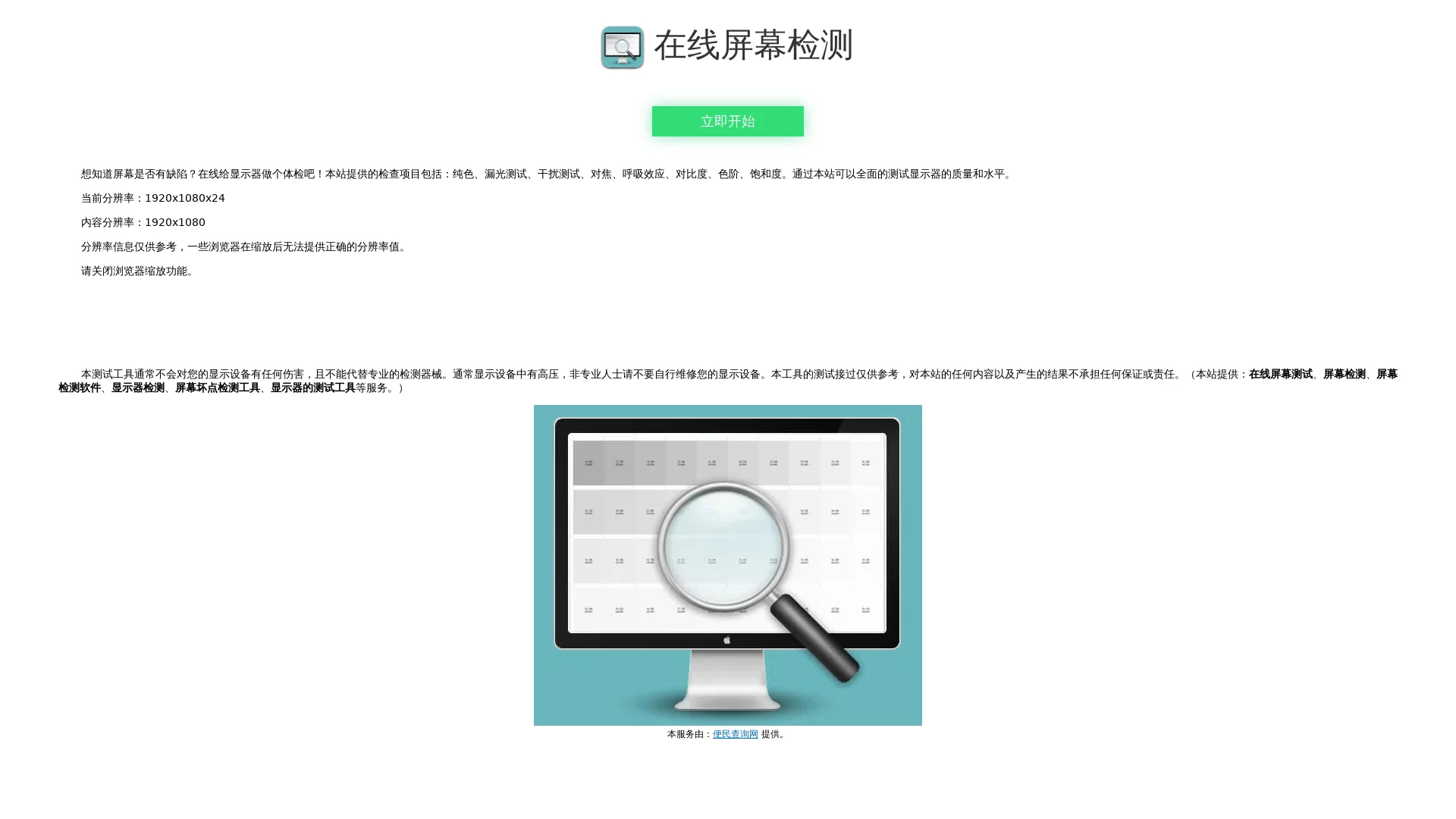

Online Computer Screen TestOnline monitor dead pixel test tool. If it doesn’t load when you open it, refresh and wait a minute or two.
Screenshots

Is something not quite right with your brand-new computer screen? Or has your old monitor, which you’ve used for years, started looking grey when you watch videos lately? This guide will help you quickly troubleshoot common screen issues using an online tool you have at hand — no need to take the device apart or call a professional.
First, understand: What’s the difference between online screen testing and professional testing
Many people can’t tell the difference between online screen testing and professional offline testing, but in reality, their purposes are completely different. Professional offline testing uses precision instruments to detect colour shifts and pixel defects that are hard to spot with the naked eye, and can also assess the overall lifespan of the panel. Online testing, on the other hand, is a lightweight test you can run in your browser, using the colour blocks and patterns displayed on the screen itself to identify issues — no extra cost, and no need to send your monitor to a repair shop.
The advantage of online testing is that you can do it anytime, for example, you can test a new monitor immediately after unboxing and connecting it, without waiting for a technician to come to your home. However, it also has limitations, such as being unable to detect internal ageing of the panel, only issues that are visible on the surface. In addition, this tool will not cause any damage to the screen, but its results are only for reference; if you really need repairs, you still have to contact a professional.
Official website: https://screen.bmcx.com/
These are the most commonly used test items for daily use
After opening the tool, you don’t need to click all items one by one — just select a few commonly used ones for daily troubleshooting. For example, the solid colour test displays single colours (red, green, blue, white, black) on the screen. Stare at these for a few minutes — if there are dark or bright spots in any colour block, it’s likely a dead pixel. If the edges of the white block look grey or blueish, that could be light leakage, which has a significant impact on gamers and designers.
There’s also the light leakage test, which specifically targets backlight overflow around the edges of the screen — this is an issue that users with large-sized monitors often overlook. The interference test displays striped patterns on the screen; if ripples or flickering appear, it may indicate an incompatibility issue between the graphics card and the monitor, or that the screen’s refresh rate is not set correctly. In addition, the focus and breathing effect tests are suitable for old monitors that have been used for years — if the displayed text looks blurry, or the brightness changes slightly from time to time, there’s likely a minor issue with the screen’s circuitry.
Avoid pitfalls: A few small details about online screen testing
Many people using online tools tend to overlook the prerequisites for testing, resulting in wasted effort. For example, when testing, set your screen brightness to your normal daily level — don’t crank it up to full to see clearly, and don’t set it too low either, otherwise you’ll get false readings for light leakage or colour shifts. Also, turn off the screen’s automatic brightness adjustment before testing, otherwise changes in ambient light will affect the test results — for example, if you move from a dark room to a bright space, the screen will automatically brighten, which will interfere with the judgment of the stripe test.
In addition, although this tool is called a screen test, it can measure more than just the screen; it can also check the graphics card’s output signal. For example, if the interference test shows issues, it may not be the screen that’s broken, but the graphics card driver that’s not installed correctly. Also, if you’re a designer with high colour requirements, online tools can only do preliminary troubleshooting; if you really need to calibrate colours, you still have to use a professional colour calibrator. However, for daily use, online tools are enough to help you solve 80% of small screen issues.
Relevant Navigation

Rumor Refutation Platform

Mobile App Security Testing