
Batch Tools
Online AI image matting tool for batch background removal
 Compress JPG
a free online image compression tool
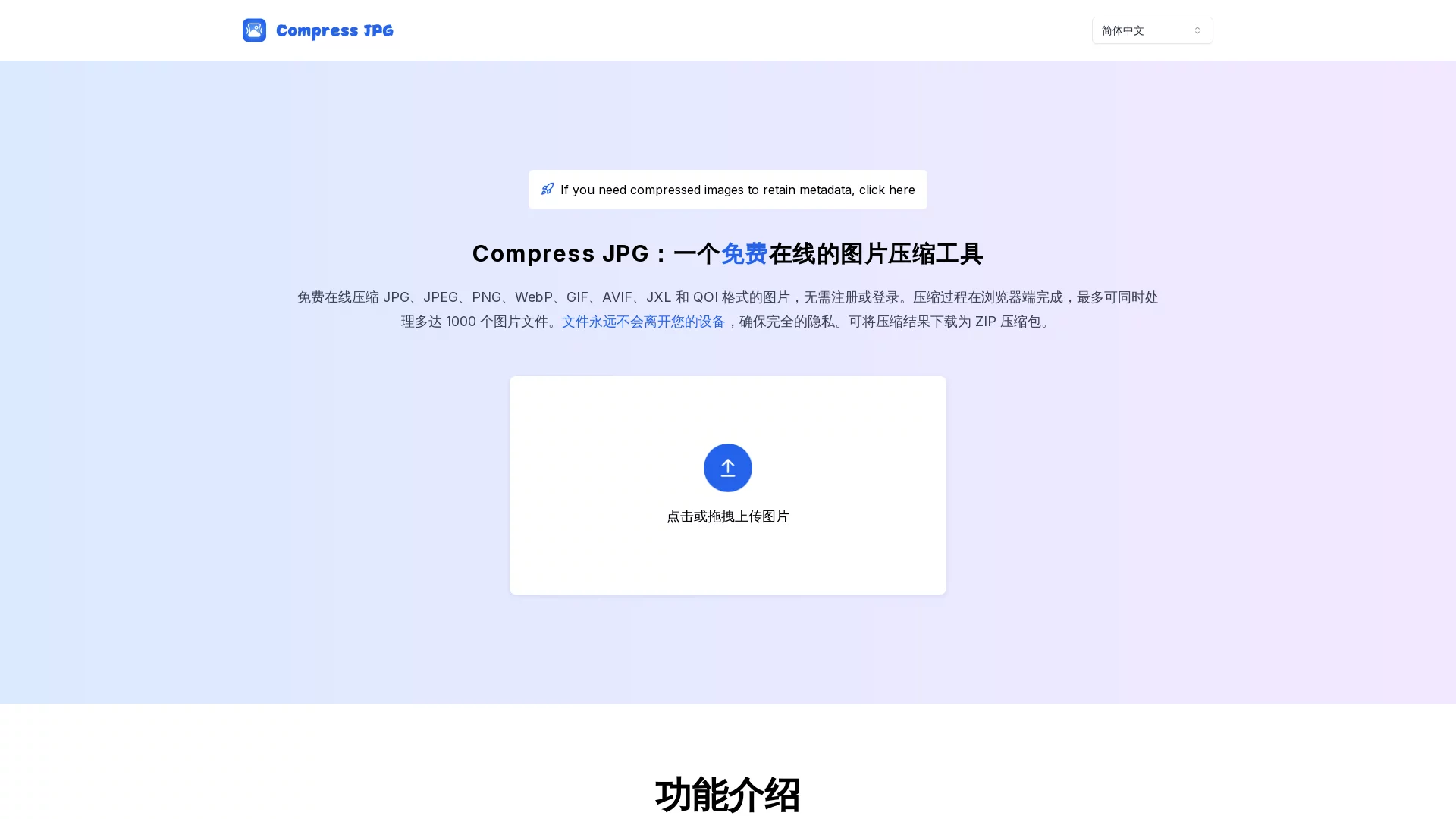
Trying to free up space in my travel album before heading out, I found that hundreds of JPGs converted from RAW take up almost 20GB. My phone album showed “insufficient storage space”; the self-media cover image I just made got stuck at the “each file no larger than 2MB” limit when uploading to the platform; even product sample images sent to clients as email attachments were rejected due to their size — these messy daily issues can actually be sorted out with an online tool. Compress JPG is designed to handle exactly these problems — no software installation needed, just open the webpage and use it.
Official website: https://compressjpg.io/zh-CN
I’ve tried many online compression tools before, but each time I had to wait ages after uploading dozens of images, and I was always worried that my private photos would be sent to someone else’s server. Compress JPG does things differently: all compression operations are done in your own browser, and the files never leave your device from start to finish, so there’s no need to worry about leaks at all. This is really reassuring for people who store work documents and private photos.
This local processing method also saves the time waiting in server queues. Whether you’re compressing 10 or 1000 images at once, the speed only depends on your computer’s performance — it won’t slow down because more people are using it. Plus, no account registration or phone number required — just open the webpage, drag in your images, and start. The whole process has no extra steps, it’s clean and straightforward.
Usually, the image formats we store are mixed: JPG from phone photos, PNG for screenshots, WebP for web images, GIF for animations, and newer formats like AVIF and JXL. It’s a hassle to switch tools just to compress one format. Compress JPG brings all these together in one place, so you don’t have to switch between tools.
The batch processing capability is also very practical. You can drag up to 1000 images at once — whether it’s a full set of photos from a single shoot or all product images for an e-commerce store, you can handle it all in one go. After compression, you can also package all results into a ZIP file with one click, no need to save each image separately — saving a lot of time.
Image compression isn’t a fancy need, but it can save you trouble in every specific scenario. It’s especially useful for several types of people.
No matter the scenario, the steps are not complicated — you don’t need professional image processing software, just follow along.
Most of the time, the tool runs on its own. Users only need to interact at the start and end — no need to do anything in between, just wait for the results.
Compress JPG has several compression levels, so you can choose your desired size and quality. If you select lossless compression, the compressed image will be identical in quality to the original — for daily use, you’ll barely notice any difference.
No, neither. It’s a pure online tool — just open it in your browser, no need to fill in information, no need to download any client, just close the webpage when done.
Nowhere. All compression is done in your own browser, and the files stay on your device the whole time — you can store private photos and work documents with complete peace of mind.
You can process up to 1000 images at once. After compression, you can also package all results into a ZIP file and download them in one go — no need to repeat operations for batch tasks.